Understanding File Formats: A Practical Guide
You've just received a broadcaster's delivery specification, a client's review link request, and an archive handover date, all for the same animation. One person is asking for an editable file, another wants a lightweight preview, and the archive team needs something that can still be identified and opened years from now. The filename alone won't resolve those demands. Understanding file formats means looking beyond extensions. A deliverable has a container, codec, colour interpretation, metadata, version history, and a destination. Choose badly and the result can be a failed upload, a soft image, missing audio, an uneditable master, or a re-render that consumes time and money. Choose deliberately and the same production can move cleanly from artist to editor, broadcaster, client, game engine, and archive.
The Moment a Producer Realises the Format Was Wrong
The warning usually arrives after the creative work is finished. The animation is approved, the final mix is attached, and the producer sends a compressed MP4 because it plays everywhere and transfers quickly. The broadcaster replies with a delivery specification requiring a ProRes master, separate audio stems, the correct frame rate, and a defined picture raster. The MP4 may be perfectly adequate for review. It isn't a suitable substitute for a master. Compression has already discarded image information, the audio may be embedded in a way the broadcaster can't separate, and the file may not preserve the technical characteristics required by the transmission workflow. The team now has to locate the final project, restore the correct settings, rebuild the export, check the grade, and repeat technical quality control. That failure isn't theoretical. A format decision affects schedule, render capacity, editorial flexibility, and handover risk. A review file is designed for convenient viewing. A master is designed to survive further processing, compliance checks, versioning, and archive handling. Treating them as interchangeable is how a small export decision becomes a production problem.
Production rule: Agree the delivery format before lighting, rendering, and final mix work begin.
A UK animation delivery specification can include the codec, resolution, frame rate, aspect ratio, audio configuration, file naming, captions, and compliance requirements. Common requirements described in a UK studio glossary include ProRes 422 HQ or XDCAM HD422, 1920×1080 HD or 3840×2160 UHD, 25 fps, 5.1 audio with separate dialogue and music stems, and a bars-and-tone slate (UK animation delivery specification guidance). The practical answer is to create a delivery matrix at the start of the job. List the broadcast master, web review, social cut-downs, archive master, stills, captions, and working interchange files. Once each output has an owner, purpose, and specification, the team can build the pipeline around the actual handover rather than discovering the requirements at the end.
What a File Format Actually Is
A file format is a set of rules for arranging information so that software can write, read, interpret, and display it. It works like a contract between the application creating the file and the application opening it. If either side misunderstands the contract, the file may fail to open or may display with missing layers, altered colour, absent fonts, or damaged timing. Three terms matter most.
- •Container: The wrapper that holds the media and related information. MP4, MOV, MKV, WAV, and AIFF are containers.
- •Codec: The method used to encode and decode the media. H.264, H.265, ProRes, DNxHR, AAC, and PCM are codecs or encoding systems.
- •Essence: The actual picture, sound, animation data, or document content inside the container.
A shipping analogy helps. The container is the crate, the essence is the goods, and the codec is the packing method used to prepare those goods for transport. Metadata is the label describing what the crate contains, how it should be handled, and which version it represents.
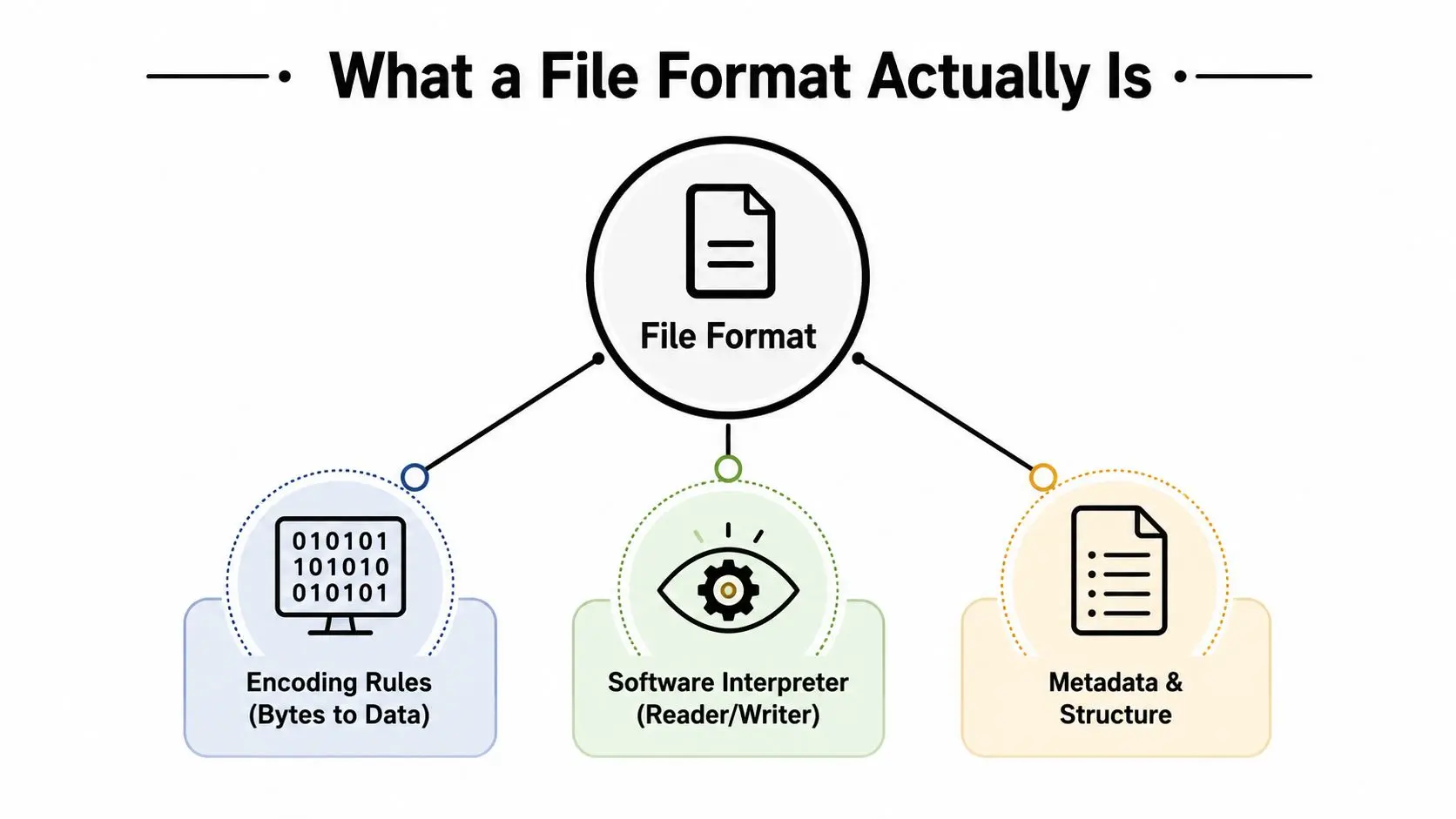
An MP4 extension doesn't tell you the whole story. One MP4 may contain H.264 video for a client preview, another may contain H.265 for a device with suitable decoding support, and a different workflow may place another video encoding inside the same container. The extension identifies the wrapper, not every property of the media within it. Open a file's properties panel and look for the codec, dimensions, frame rate, audio sampling details, colour tags, bit depth, and metadata. A file labelled `final.mp4` is not a technical description. A more useful record might identify the project, shot, version, codec, colour space, and intended use. That distinction also explains why a file can “play” and still be wrong. A media player may decode a file successfully, while an editing system, broadcaster, game engine, or archive validator rejects it because the codec, profile, metadata, or structure doesn't meet the workflow's requirements.
The Core Distinctions Every Producer Needs
Raster and vector solve different image problems. Raster artwork stores pixels, so resolution and scaling matter. It suits painted textures, rendered frames, photographs, and key art. Vector artwork stores paths and mathematical instructions, making it useful for logos, icons, diagrams, and graphic elements that need to scale across a title card and a large display. A flattened PNG can preserve a logo's visible appearance, but it won't preserve editable paths. An SVG or PDF can retain vector structure, although the receiving application must support the relevant features and fonts. Production rule: deliver logos as SVG or PDF when editability and scale matter, not only as a flattened PNG. Lossy and lossless describe what happens during compression. Lossy codecs remove information to reduce file size. That can be useful for review links, social uploads, and lightweight previews, but repeated re-encoding can introduce blocking, ringing, mosquito noise, and softened detail. Lossless or visually lossless formats retain more information and are better suited to masters, compositing, grading, and archive derivatives. A compressed review cut can be excellent for approval while remaining unsuitable for a final transmission file. Production rule: master in a high-quality codec, then create compressed review versions from that master. Codec and container are often confused because software menus combine them. Choosing MOV doesn't automatically choose ProRes. Choosing MP4 doesn't automatically mean H.264. The container affects compatibility and how tracks and metadata are organised, while the codec controls how the essence is encoded.
| Distinction | Common pair | Production rule of thumb |
|---|---|---|
| Raster versus vector | PNG and TIFF versus SVG and PDF | Use raster for pixel-based imagery and vector for scalable graphic artwork |
| Lossy versus lossless | H.264 versus ProRes or uncompressed media | Compress copies for review, protect the master |
| Codec versus container | H.264 in MP4, ProRes in MOV | Specify both, never rely on the extension alone |
The most reliable handover names the container, codec, frame size, frame rate, audio layout, colour space, and version. That description gives the recipient something testable. “Send a high-quality video” doesn't.
Choosing Formats by Medium
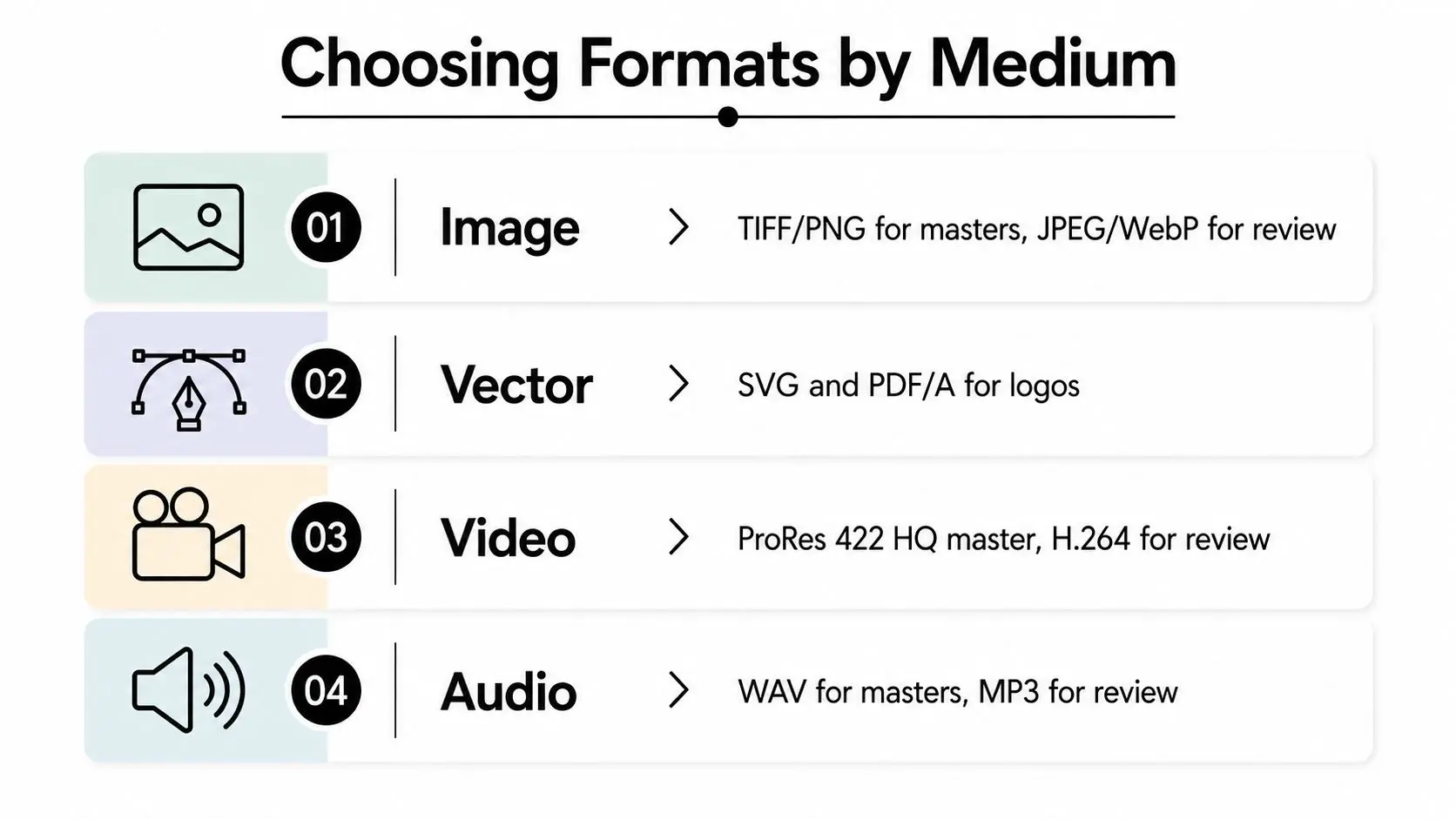
Format selection becomes easier when the output has a defined job. A master needs preservation and further processing. A review file needs dependable playback and manageable transfer. An interchange file needs to keep structure that another artist or application can continue working with.
Images
Use TIFF or PNG for masters when you need clean, predictable image data. TIFF is a strong choice for high-quality stills and archive-oriented image work. PNG handles transparency well and is practical for graphics and rendered elements. Use JPEG or WebP for previews where smaller files and quick viewing matter more than retaining every detail. For a compositing handoff, preserve alpha information deliberately. A PNG with transparency may be appropriate for a graphic element, while a flattened JPEG removes that flexibility.
Vector artwork
Use SVG for scalable interface and graphic assets where the receiving software supports it. PDF, including PDF/A where an archival document is required, can provide a more stable handover for logos and artwork that must retain vector paths. Check fonts, clipping masks, gradients, and embedded images before delivery, because vector does not mean universally editable. For a deeper look at how 3D assets are commonly structured and exchanged, BEDHEAD's mattress 3D file guide is a useful companion resource.
Video
Use ProRes 422 HQ as a practical master choice when the receiving broadcaster or post-production partner accepts it. Generate H.264 review files separately. The UK government's publishing policy illustrates the broader principle, editable material belongs in a format designed for editing, while viewing material belongs in a format designed for reliable presentation. For documents, that policy selected ODF 1.2 for editable documents and PDF/A and HTML5 for viewing formats (UK government Open Document Format policy).
Audio
Use WAV for a master and AAC or MP3 for review, provided the recipient has agreed the delivery requirements. Keep dialogue, music, effects, and mix stems separate when the downstream workflow needs control. Don't convert a compressed review file back into WAV and call it a master. The larger wrapper won't restore information already removed.
3D and XR
For 3D interchange, USD, FBX, and Alembic can each be useful, but the correct choice depends on whether the handoff carries scenes, rigs, animation caches, or geometry. Record the application version, plug-ins, units, axis orientation, frame rate, texture paths, and colour assumptions. For XR, a Quest-optimised GLB can be a practical delivery asset, with MP4 textures where the target runtime supports them, but performance testing must happen on the actual device and build configuration.
Colour Profiles and Why Your Preview Looks Wrong
A graded shot can look rich in the colourist's suite and flat or over-saturated on a client's laptop. The file may be intact. The disagreement often comes from a mismatch between the colour space used to create the image, the colour space used to display it, and the tags that tell software how to interpret it. sRGB is a common choice for web and general computer display. Rec.709 is central to HD broadcast workflows. Rec.2020 covers a wider UHD colour space, while Display P3 appears in some modern display and digital delivery contexts. Linear is commonly used inside rendering and compositing calculations, where light values need to behave mathematically rather than imitate a display.
Scene-referred and display-referred work
Scene-referred workflows describe captured or rendered light before it is mapped to a display. Display-referred workflows describe the result after that mapping. If a render is interpreted as linear when it was intended for display, or if Rec.709 material is treated as sRGB without the correct transform, contrast and saturation can shift. Set the project colour space first. Render with the intended transform, review on a managed display where possible, and tag the delivery file correctly. A last-minute conversion in Photoshop or an export dialogue won't repair a pipeline that interpreted the image incorrectly from the start. For production context, this guide to colour correction for producers and brands offers a useful explanation of how correction and grading decisions affect the finished image. A practical delivery starting point looks like this:
- •Social and web: Use sRGB for stills and web graphics, and confirm the platform's handling of uploaded video.
- •Broadcast: Use the broadcaster's specified Rec.709 or UHD colour requirements, including any legal-range and gamut rules.
- •XR: Match the engine, texture, lighting, and display pipeline. Tag textures and test the final build rather than judging only from a desktop preview.
A colour profile is part of the asset's meaning. If you omit it, the recipient has to guess.
Pipeline Conventions That Save Productions
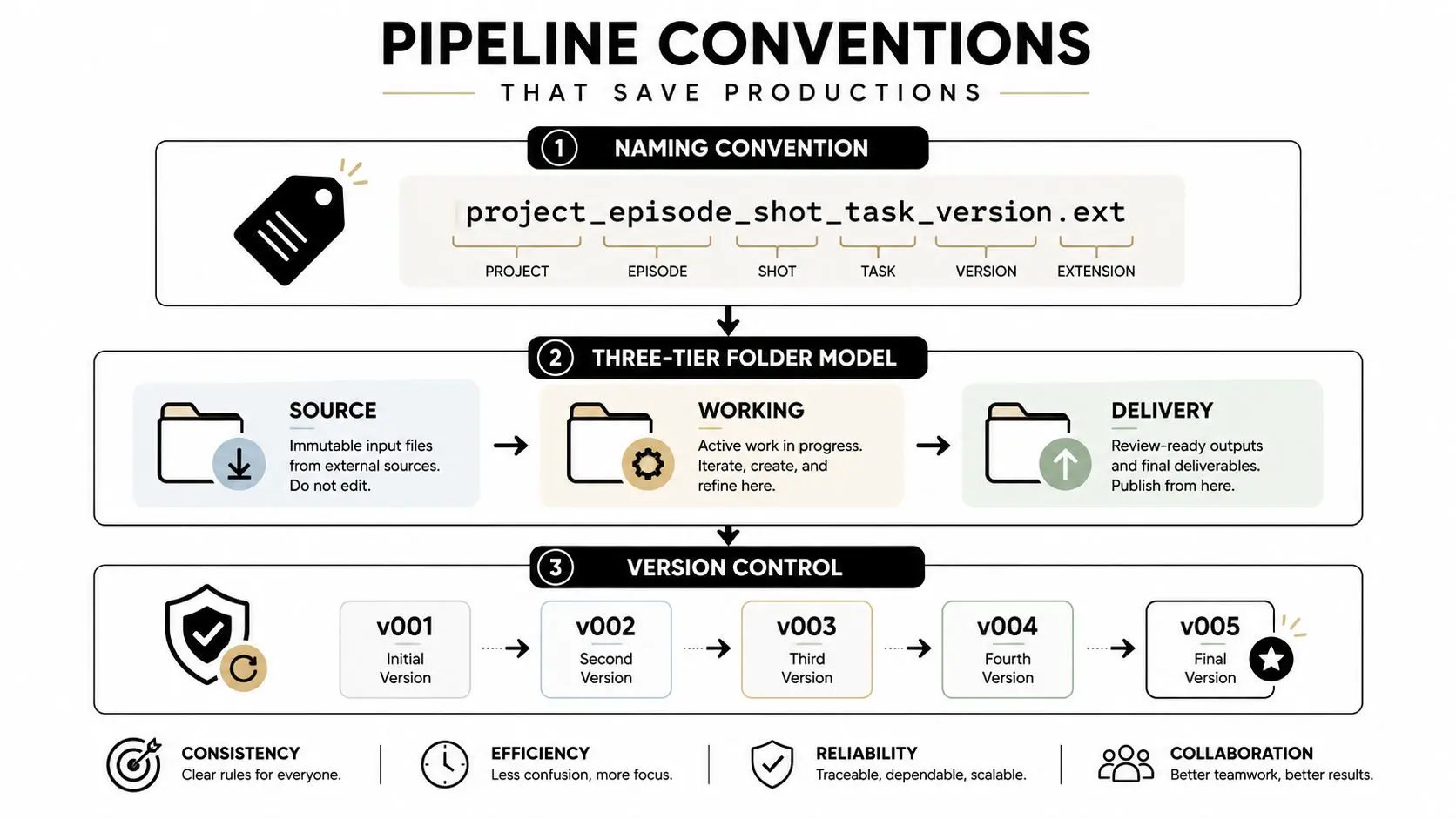
The pipeline is more than a set of applications. It's a chain of decisions that lets people identify, retrieve, approve, revise, and preserve the right asset. File formats work properly only when the surrounding process tells the team what each file is for. Start with a naming pattern that carries production meaning: `project_episode_shot_task_version.ext` A name such as `boosnoo_ep03_sh014_comp_v07.mov` tells an editor more than `final_final2.mov`. Add the relevant status in a controlled way, for example `review`, `approved`, or `master`, rather than allowing every contributor to invent a different suffix.
Three folders with different jobs
- •Source: Original plates, artwork, audio recordings, scans, project files, and imported assets.
- •Working: Active scenes, renders, caches, grades, simulations, and temporary conversions.
- •Delivery: Approved exports only, with the specification and version recorded alongside them.
Keep the approved master separate from working renders. Working folders change constantly. Delivery folders should be controlled, readable, and suitable for handover. A common failure starts with a small naming shortcut. An artist exports a new colour grade over the previous version, removes the version suffix, and sends the file for approval. The client approves it, then asks to compare it with the earlier grade. Nobody can identify which render was reviewed, and the team has to reconstruct the state of the project from caches and email attachments. Version control prevents that confusion. Use sequential versions, record who approved each file, and preserve the project file that generated the master. A file's extension can't tell you whether it is approved. Your pipeline must.
The animation production pipeline guide provides further context on how organised stages and handoffs support reliable creative work. For archival handover, record the exact format version, encoding, software version, plug-ins, fonts, and dependencies. The UK National Archives uses PRONOM, a registry containing details on more than 1,300 digital file formats, to support identification and preservation workflows (UK National Archives preservation guidance).
Conversion Tools for the Working Producer
Pick a conversion tool by the problem, not by brand familiarity. The safest workflow preserves the original, creates a converted copy, and checks the result on the platform that will receive it. ImageMagick handles batch image conversion, resizing, colour operations, and format changes. It's useful for TIFF-to-PNG or PNG-to-JPEG derivatives, but check alpha channels and embedded profiles after conversion. GraphicsMagick offers a similar command-line approach for image processing. FFmpeg is the flexible choice for video and audio transcoding. It can create H.264 review files from a ProRes master, extract audio, inspect streams, and standardise media for editorial. Its power is also its risk. A poorly chosen command can alter frame rate, audio mapping, or colour metadata without making the mistake obvious. HandBrake provides a more approachable interface for common video exports. It's suitable for review encodes and web-friendly copies, not for replacing a broadcaster's agreed master specification. Shutter Encoder gives producers a practical interface around many professional media operations, including transcodes, rewrapping, and file inspection.
Adobe Media Encoder fits naturally into Premiere Pro and After Effects workflows, particularly when an editor needs queued exports across multiple deliverables. For documents, Acrobat Pro can validate and convert PDFs, while LibreOffice can help with ODF conversions where editable office documents need a non-proprietary handover. For 3D, Blender can act as a neutral translator between supported formats, while USD tools help inspect and exchange scene information. Always test rigs, constraints, materials, animation curves, and texture paths after import. The video editing software guide for producers can help teams choose an editing environment around the delivery work they perform.
Troubleshooting and Long-Term Preservation
A file extension is a label, not proof. Someone can rename a PDF as `report.docx`, and the extension will suggest an editable Word document even though the internal structure says otherwise. Use a file inspection tool or validation utility to identify the actual signature, container, codec, and metadata. Codec failures often appear after a software upgrade or workstation change. If a project opens with missing media, black frames, absent fonts, or broken effects, identify the dependencies before attempting a blind re-export. Preserve the original source, the approved master, and a readable technical record of how the file was created.
Open does not automatically mean safe
Open formats can improve interoperability and reduce dependence on one application, but a well-established proprietary format may remain practical when a community already supports it and the receiving workflow depends on it. The University of Edinburgh's guidance takes this nuanced position, favouring open standards such as PDF, OpenDocument, and TIFF, while also recognising established proprietary formats such as Word, Excel, and JPEG when they are embedded and unlikely to disappear soon (University of Edinburgh file-format guidance). For long-term preservation, choose formats that are well specified, identifiable, and practical to validate. UK archival guidance recommends preservation-oriented choices such as TIFF for images, WAV or AIFF for audio, and PDF/A or XML-based standards for documents and structured data (UK National Archives format guidance). Keep technical metadata and plan migration rather than assuming an archive is permanent. A useful preservation system also preserves context, not only bytes. Record approvals, dependencies, naming conventions, and decisions so another person can understand the asset later. Teams concerned with retaining organisational knowledge may find guidance on stopping the loss of context at startups relevant beyond media production. Common questions
- •Why won't a file open? Check the internal format, required application, missing codec, fonts, plug-ins, and file integrity.
- •Can I archive the review MP4? Keep it as a viewing derivative, but preserve the agreed master and source information separately.
- •Should every archive file be open? No. Choose formats based on identification, validation, accessibility, transferability, and realistic software support.
- •What should accompany a master? Include the specification, version, colour space, audio layout, software dependencies, approval record, and any required captions or metadata.
--- If your next animation, broadcast delivery, game asset, or XR experience needs a dependable format strategy, Studio Liddell can help scope the production from brief and previz through lighting, comp, optimisation, and final delivery. Book a production scoping call to define the right masters, review files, interchange formats, and archive package before production begins.