10 Augmented Reality Apps for Android: What Each Does Best
You're on an unfamiliar street with a suitcase, unsure which turning leads to the hotel. Your Android phone can overlay directions on the camera view, help you read a menu in another language and show a labelled sky map when you finally reach somewhere quiet. The useful question isn't whether augmented reality looks impressive. It's whether the camera view helps you do something more easily than a conventional map, photograph or search box would. The best augmented reality apps for Android solve a specific problem, rather than asking you to admire an effect. The choices below cover getting around, shopping for the home, learning, playing and explaining complex products. Some anchor digital objects in your surroundings; others add translated text or useful information to what your camera sees. They don't all require the same hardware. For educators, that distinction also separates phone-based AR from immersive learning with virtual reality, where learners typically enter a digital environment rather than view their existing surroundings. Check the exact feature you need before depending on an app. Regional coverage, selected product catalogues, browser support and phone compatibility can all limit an otherwise useful tool. A successful installation doesn't necessarily mean every AR feature will work.
1. Google Maps
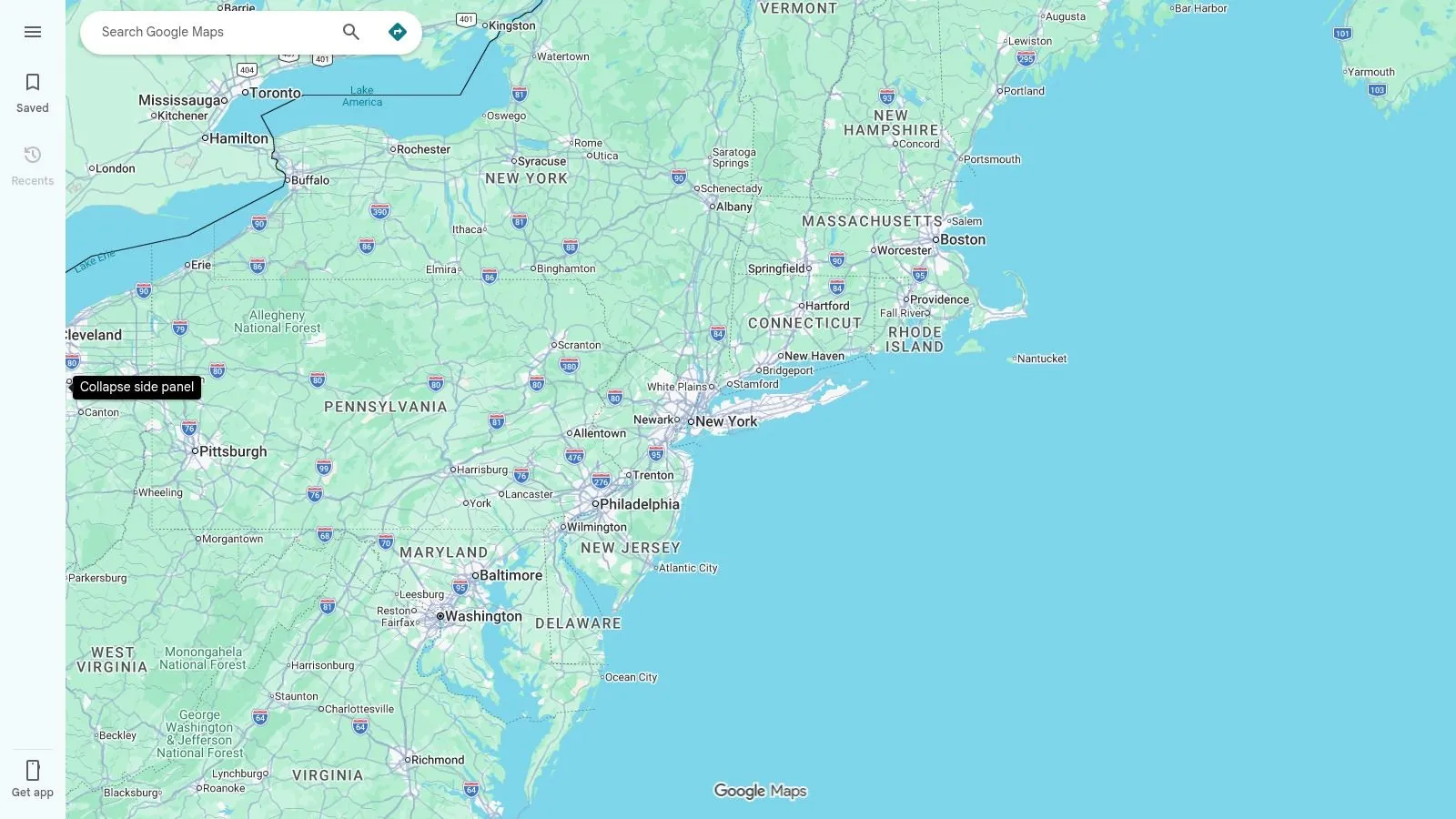
Best for orienting yourself during a walking journey. Google Maps combines conventional navigation with camera-based directions and nearby-place information. Its walking-guidance and Lens experiences help connect the map on your screen with the street in front of you. That's particularly helpful when you emerge from a station and can't tell which direction you're facing. Directional overlays can make the first turning clearer, while place information helps you identify nearby destinations without repeatedly typing searches.
Where the camera helps
Use the camera view to establish your bearings, then return to the ordinary map. Keeping both options in the same app is more practical than switching between a separate AR navigator and your saved journey.
- •Strength: Camera guidance makes unfamiliar junctions easier to interpret.
- •Coverage limit: Availability depends on location, supported features and Street View coverage.
- •Device limit: You'll need a compatible phone for the relevant AR experience.
Don't assume the camera mode will work along every route. Check it before leaving a reliable connection, and retain the address in an ordinary map view.
Practical rule: Stop somewhere safe to orient yourself. Don't hold the phone in front of your face while crossing a road.
2. Google Lens
A label has no obvious product name, or an unfamiliar object is difficult to describe. Google Lens lets you start with an image rather than a carefully worded search. Best for quick visual lookups, Lens recognises items, searches for related information and translates text from camera images. On supported Android devices, you can access it through Google apps and some camera experiences, although the route varies with your configuration.
Recognition isn't verification
Lens is useful when you need a starting point. For example, photograph a furnishing to explore visually similar products, or frame unfamiliar packaging to understand its text. The limitation is uncertainty. A similar-looking result doesn't establish that you've identified the exact object, material or model.
- •What works: Clear images with a single, well-lit subject.
- •What struggles: Obscure objects, reflections, cluttered backgrounds and blurred text.
- •What to check: Internet access and the capabilities available through your particular app or camera.
For classroom use, ask learners to compare the suggested result with observable details rather than accept it automatically. For business use, treat Lens as a discovery tool, not a substitute for product documentation. It's less about placing objects in a room and more about adding useful information to what's already there.
3. Google Arts & Culture
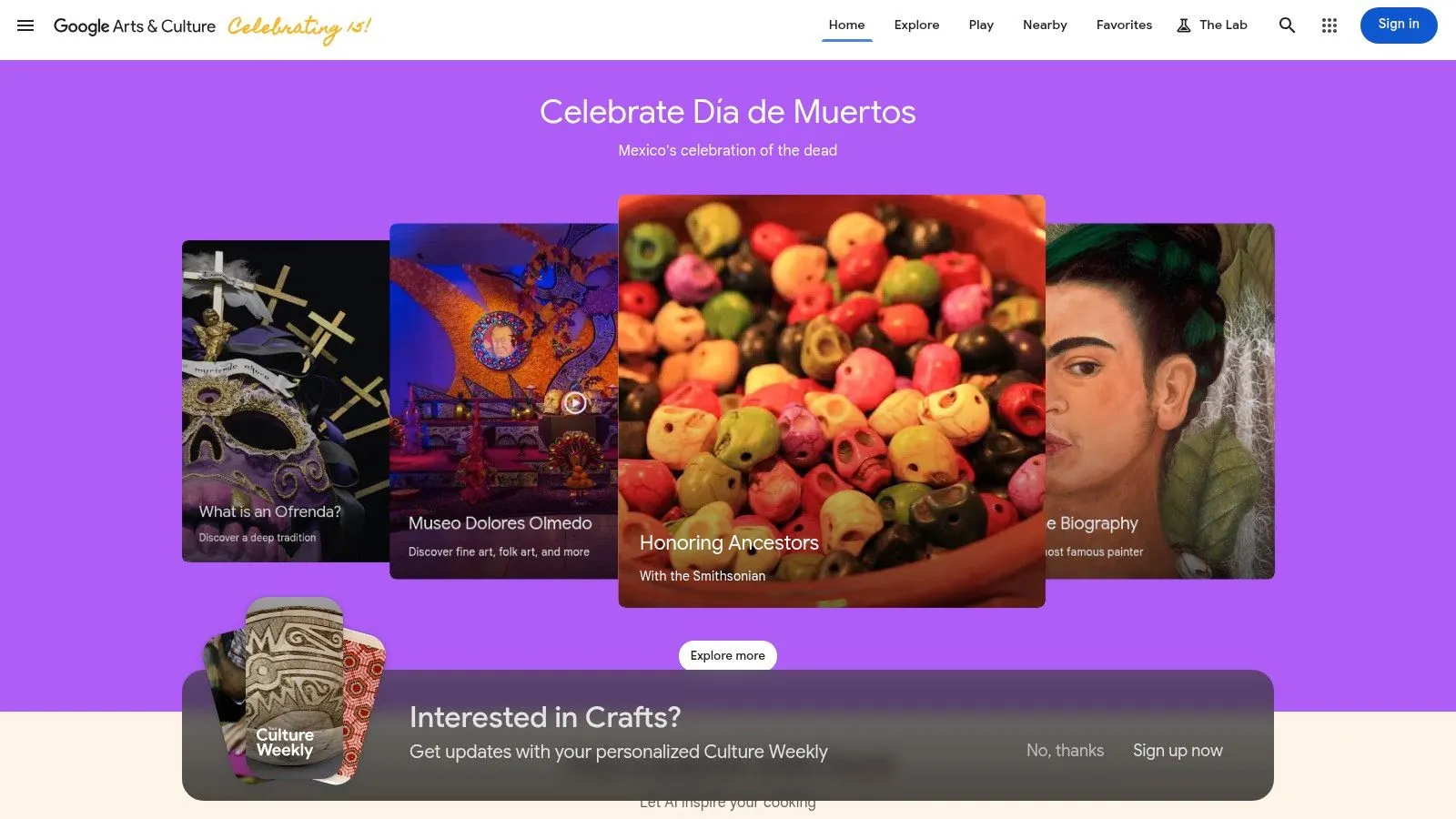
Google Arts & Culture suits curious families and educators, especially when an artwork's size matters to the discussion. Google Arts & Culture combines museum collections and cultural stories with features such as Art Projector and immersive Pocket Galleries. Selected works can be viewed at approximate room scale. That gives learners a different reference point from a small image in a textbook, although it isn't a replacement for seeing the original work.
Give exploration a purpose
A useful classroom activity is to choose an artwork, explore its accompanying material and discuss how its apparent scale changes the viewing experience. Pocket Galleries provide another way to browse cultural content beyond a conventional image grid.
- •Educational advantage: AR sits alongside stories and collections, rather than functioning as an isolated visual trick.
- •Consumer advantage: It's free to explore and supports informal discovery.
- •Content limitation: Available experiences depend on Google and participating cultural institutions.
The larger app can take some exploring, so locate the intended feature before a lesson begins. Don't hand out devices expecting every learner to find the same experience immediately. For a planned activity, test the chosen artwork and device combination beforehand. A prepared alternative using ordinary collection images keeps the lesson usable if AR isn't available.
4. Google Translate
Reading a menu is a more immediate problem than identifying every object on the table. Google Translate uses the camera to translate printed text, and it can also work with saved images. Choose it when understanding language is the main job. Lens handles broader visual discovery, while Translate provides a more focused place to work with unfamiliar words, copy translated text or hear it read aloud.
Prepare before travelling
Download supported languages before you lose connectivity. Offline camera translation can help with menus, signs and packaging, but available languages and features vary. The camera still needs a readable image. Small print, decorative lettering, glare and dim lighting can produce misleading results even when the app appears to have translated everything.
- •Improve the input: Move closer, steady the phone and keep the text flat within the frame.
- •Check the output: Look for missing lines, odd sentence structures and untranslated words.
- •Keep perspective: Don't use a camera translation as the sole authority for safety-critical instructions.
For everyday travel, the convenience is clear: point, read and continue without typing unfamiliar characters. For a school trip or workplace task, prepare essential instructions separately instead of assuming live translation will always be accurate. A suitable camera and device are necessary, but good lighting often matters just as much to the result.
5. IKEA
Best for considering furniture within the IKEA range, IKEA's mobile experiences have offered AR visualisation that places selected product models in a room. Start with the IKEA UK mobile apps page and confirm what the current UK app supports before planning around it. A digital chair beside your existing table can help you judge style and apparent scale. It's a more useful comparison than trying to mentally combine separate catalogue photographs.
Visualise first, measure separately
AR doesn't replace a tape measure. Check the physical dimensions, access route, door clearance and space needed to use the furniture comfortably.
- •Shopping benefit: Visualisation connects a room preview with IKEA's product range.
- •Catalogue limit: Only selected products and available models can be previewed.
- •Availability limit: Device compatibility, region and changing app features affect access.
For retailers, the interesting lesson is the connection between the preview and a purchasing question. A model should help someone judge a product, not just provide a decorative animation. The same distinction matters in augmented reality for ecommerce: useful previews need clear controls and reliable product information.
Treat furniture AR as a visual comparison, not proof that a delivery will fit through your doorway.
6. Houzz
Renovation research rarely starts with a final shopping list. Houzz combines design inspiration, articles, videos, product browsing and professional listings, with View in My Room 3D available for selected products. Choose Houzz for decorating research that includes visualisation, rather than for a stripped-back AR viewer. You can gather ideas, consider furnishings and explore home-improvement professionals within the same broader environment.
Useful breadth, extra navigation
Say you're updating a sitting room but haven't settled on a style. Inspiration images can help narrow the direction before you preview an eligible furnishing in your own space. That breadth is also the drawback. Someone who only wants to place a model against a wall may find the surrounding shopping and editorial content busy.
- •Good fit: Early-stage decorating, furnishing comparisons and renovation planning.
- •Limited coverage: AR previews depend on participating products and supported devices.
- •Separate requirement: Garden layout and site planning need different tools.
If you're planning outdoor space rather than choosing individual furnishings, compare 3D landscape design software instead of expecting a room-preview feature to do the same job. For a business presentation, Houzz is most useful as inspiration and product context. It isn't a general-purpose platform for publishing your own interactive product demonstration.
7. Pokémon GO
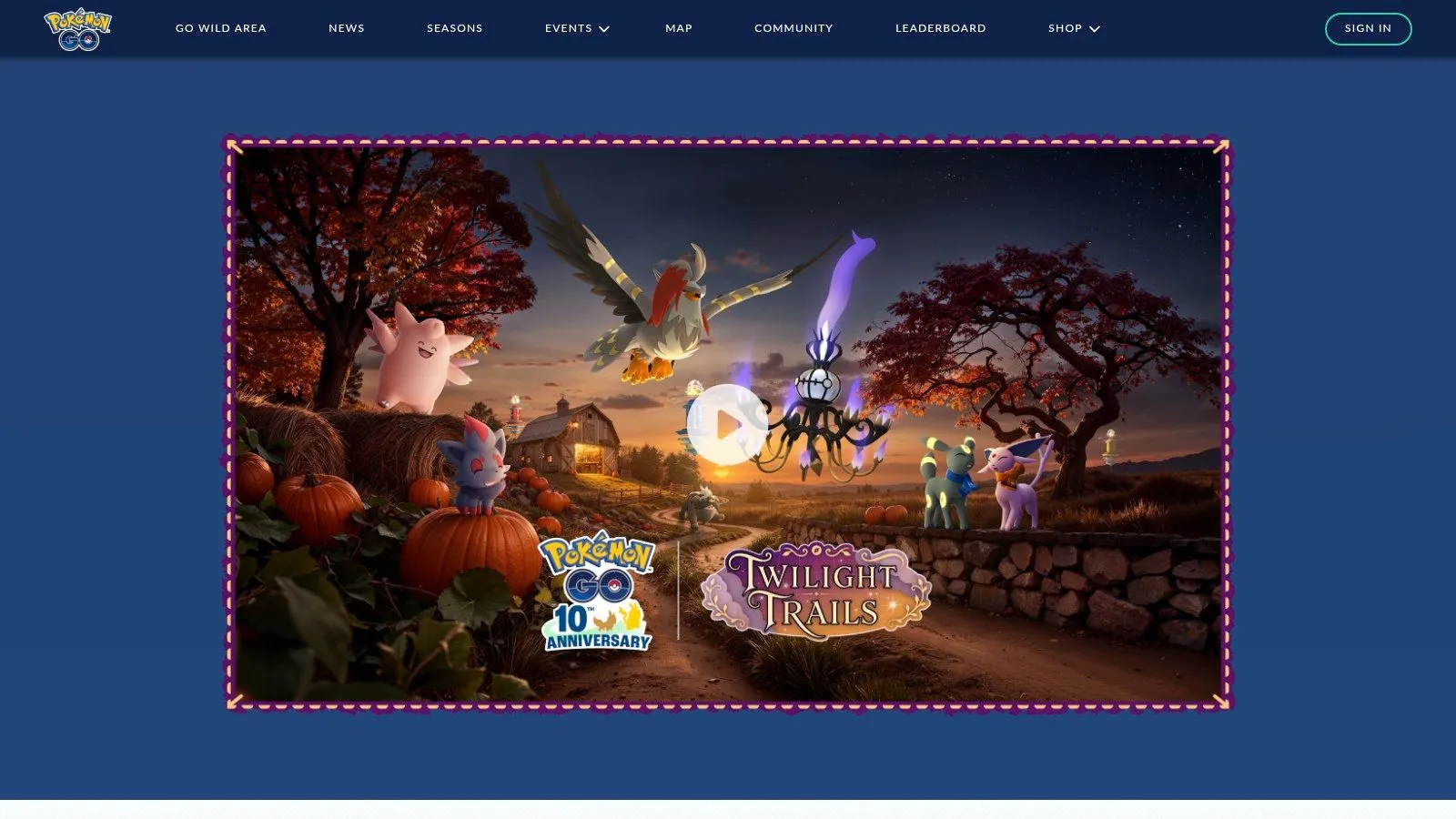
Pokémon GO is a location-based game first and an AR experience second. Pokémon GO combines exploration and collecting with camera-based character encounters and real-world photographs. Choose it because you enjoy Pokémon and outdoor play, not because you want to test your camera. Compatible AR features can place characters within your surroundings, but the wider game supplies the reason to return.
Check the current AR mode
AR and AR+ capabilities depend on the supported phone and the game's current implementation. Don't assume an older demonstration represents the controls or encounters you'll find today.
- •Appeal: Familiar characters make camera encounters enjoyable for fans and families.
- •Hardware requirement: Supported AR functionality needs an ARCore-capable Android device.
- •Commercial consideration: Optional in-app purchases are available.
For other location-led games, these alternatives to Pokémon GO provide a starting point, but assess the activity as well as the visuals. Public deployment needs particular care. Google Play's developer policy requires immediate AR safety warnings and addresses sensitive locations, including private property and restricted areas. A compelling encounter isn't permission to enter an unsafe space. For children, plan supervision and safe stopping points rather than allowing a virtual destination to dictate the route.
8. Snapchat
A face transformation or animated object in the room is a different job from navigation or furniture planning. Snapchat focuses on playful camera effects that users can capture and share within the app. Best for social AR, its Face Lenses transform appearances, while World Lenses add digital objects and animations to the surrounding scene. The Lens carousel and Lens Explorer help users discover effects without learning specialist software.
For people and campaigns
For a consumer, the attraction is a short interaction with an obvious result. For a marketing team, the question is whether the effect communicates something recognisable about the brand. A useful starting point is designing Snapchat filters for UK brands, particularly when deciding what users should do and what they'll want to share.
- •Strength: Creation, capture and sharing happen in the same social environment.
- •Device limitation: Some World Lenses aren't available on every device.
- •Access requirement: Users need an account and camera access.
Don't choose Snapchat for precise measurement, technical instructions or dependable product-scale comparisons. Its strength is expression and participation.
Campaign judgement: Make the interaction understandable before adding visual complexity. If users can't tell what to do, a more elaborate effect won't solve the problem.
For schools or public organisations, consider account requirements and safeguarding before selecting it for an activity.
9. Star Walk 2
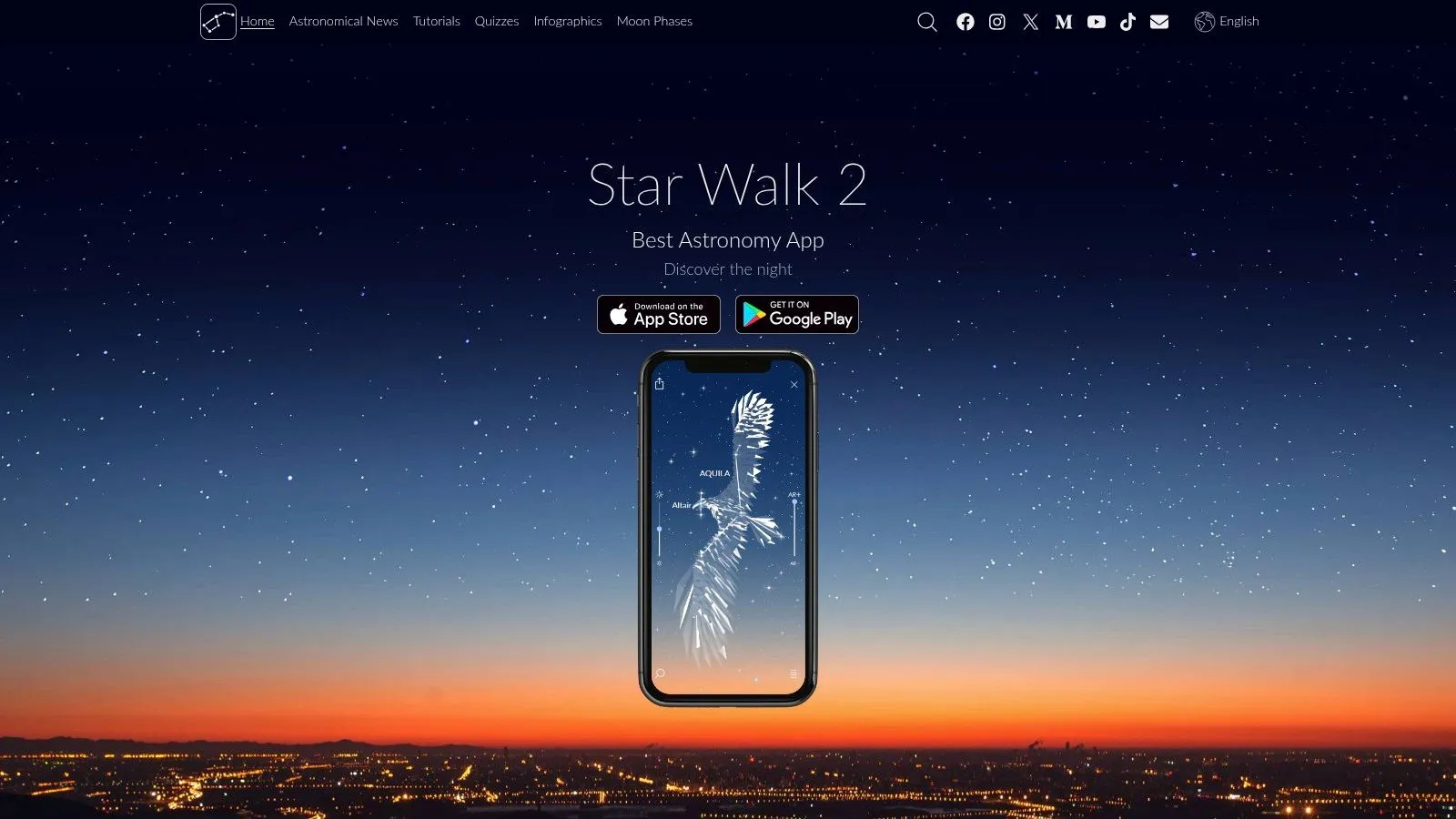
Pointing at the sky is often easier than interpreting a conventional star chart. Star Walk 2 provides a labelled sky map that follows the direction of your phone, helping identify stars, constellations, planets and other celestial objects. Best for introductory astronomy, it gives beginners and families a visual connection between a name on screen and a direction overhead. Labels and illustrations make it suitable for informal learning rather than specialist observation.
Separate the overlay from the observation
A labelled object on screen isn't a guarantee that you can see it outdoors. Cloud cover, light pollution and the viewing conditions still determine what's visible. Phone sensors and calibration also affect alignment. If the overlay seems displaced, check calibration rather than assuming you're looking in exactly the right direction.
- •Learning benefit: Learners can explore the sky by pointing instead of first mastering a chart.
- •Physical limitation: The app can't remove clouds or brighten a faint object.
- •Purchase consideration: Pricing and included content can vary, so check the current listing.
For an outdoor lesson, choose a safe observing location and prepare a discussion that still works under cloud. Ask learners to distinguish what the app identifies from what they can observe. That habit makes the activity more educational than just collecting names from the screen.
10. JigSpace
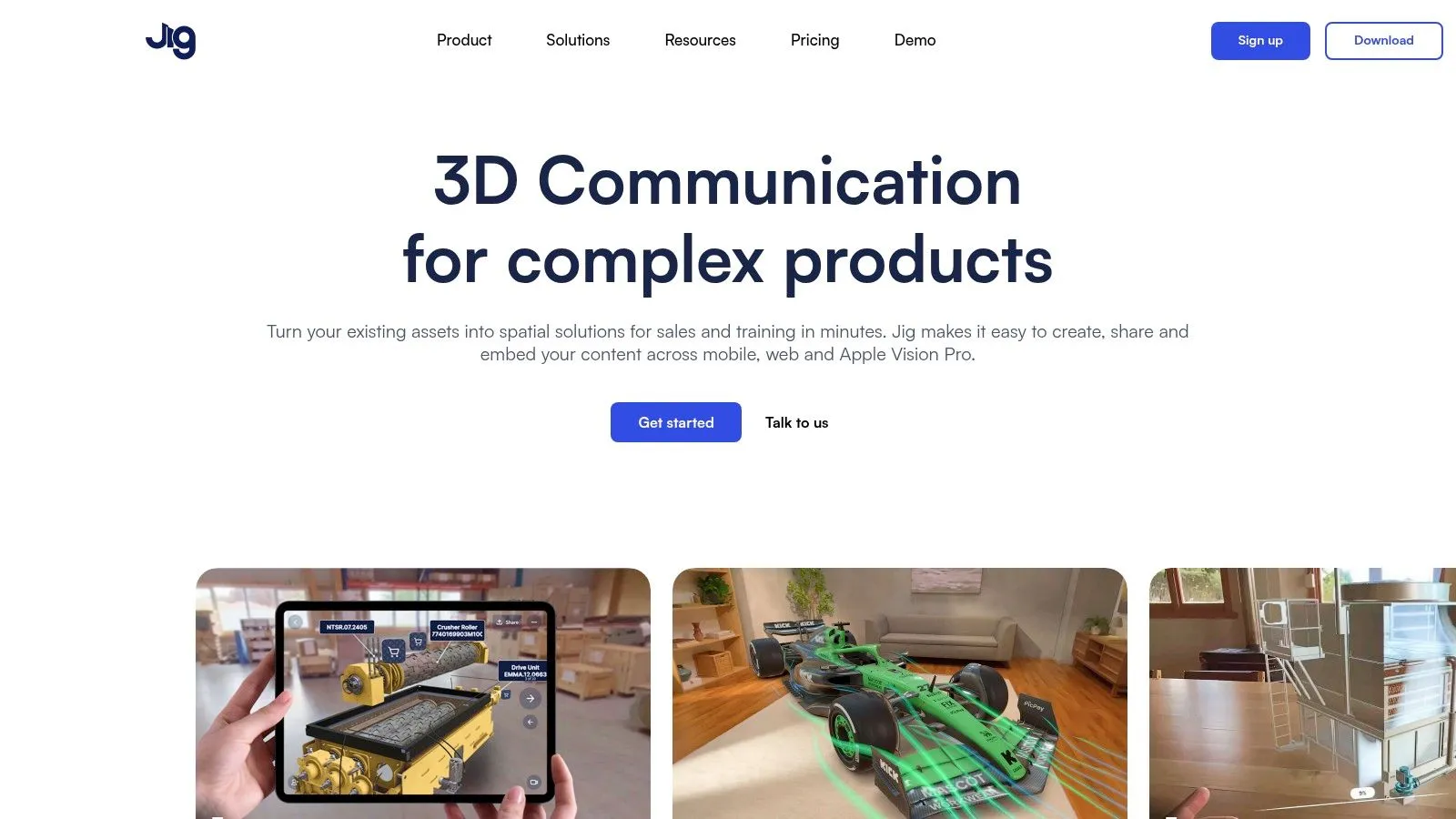
JigSpace is the business-and-education choice for explaining complex objects. JigSpace supports interactive, step-by-step 3D presentations and AR experiences, rather than concentrating on ready-made consumer effects. Creators can prepare presentations on desktop and share them through links, QR codes or embedded web experiences. Android audiences view through compatible browsers and devices, so this isn't the same proposition as installing a fully featured Android authoring app.
Budget for the explanation
Say a manufacturer needs to explain how an assembly fits together. A staged presentation can reveal components in sequence, keeping attention on the part being discussed instead of displaying everything at once. The work lies in preparing suitable models, choosing the sequence and writing clear explanations. Link-based distribution reduces some access friction, but it doesn't remove content production.
- •Strong fit: Product demonstrations, classroom explanations and process walkthroughs.
- •Compatibility limit: Android AR viewing depends on the browser and device; some variants may not support it.
- •Procurement check: Confirm current authoring access and business pricing before committing.
Google's ARCore device documentation explains why certification depends on cameras, sensors, device design and processing capability, not the Android version. For an audience-facing presentation, provide an ordinary interactive 3D view or another accessible explanation when AR isn't supported.
How the ten Android AR apps compare by main use, best fit and device requirements
| Item | Main AR use | Best for | Device or setup limit |
|---|---|---|---|
| Google Maps | Camera-based walking directions | Navigating unfamiliar areas | Compatible device and supported location required |
| Google Lens | Object recognition and camera search | Quick lookups and identifying unfamiliar text or items | Some features need internet and supported device or app setup |
| Google Arts & Culture | Viewing selected artworks and galleries in AR | Art exploration and informal learning | AR content depends on Google and partner institutions |
| Google Translate | Translating text through the camera | Reading signs, menus, and labels | Suitable camera required; features and offline languages vary |
| IKEA | Previewing selected furniture in a room | Checking furniture style and fit before buying | Compatible device and available regional product catalogue required |
| Houzz | Previewing selected products in a room | Home design and renovation research | AR previews limited to participating products and supported devices |
| Pokémon GO | Location-based play with optional camera AR | Pokémon fans who enjoy outdoor exploration | AR requires an ARCore-capable Android device |
| Snapchat | Face effects and digital objects in camera view | Playful AR photos and social sharing | Some lenses vary by device; account and camera access required |
| Star Walk 2 | Identifying celestial objects in a camera-based sky map | Astronomy beginners and families | Accuracy depends on phone sensors and calibration |
| JigSpace | Interactive 3D presentations and AR demonstrations | Education and business presentations | Android AR viewing depends on device and browser compatibility |
Matching the Right AR App to Your Android Use Case
Start with the job, not the app. Google Maps helps with orientation, Google Translate helps with unfamiliar text, and IKEA or Houzz can support furnishing decisions where their current catalogues and regional features allow it. Arts & Culture and Star Walk 2 offer learning activities, while Pokémon GO and Snapchat make more sense when play or sharing is the purpose. For explaining a product or process, JigSpace is a closer fit than a social Lens. The distinction is what the viewer needs to understand or accomplish, not how elaborate the digital object looks. Shortlist a few suitable options and test the complete task on the Android devices your audience uses. Include opening the experience, granting permissions, finding the feature and recovering when tracking fails.
Test usefulness as well as compatibility
- •For consumers: Check regional availability, connectivity needs and whether the useful feature works on your handset.
- •For classrooms: Prepare devices, account access and a non-AR alternative before the session.
- •For businesses: Test the shared link or installation journey, model clarity and fallback experience.
- •For public settings: Review safe stopping places, accessibility, camera permissions and necessary location access.
Don't dismiss a refurbished phone purely because it isn't new, but don't infer AR support from its condition or age either. The Used Mobiles 4 U app guide can help with broader app choices; the exact handset and intended AR feature still need testing together. A satisfying interaction also needs more than convincing graphics. A study published in the Journal of Consumer Behaviour linked experiential value, particularly playfulness and aesthetics, with brand loyalty through customer satisfaction among female AR mobile-app users in the UK and UAE. In practical terms, test whether people understand the interaction, complete it and find the result useful. Stable placement matters, but so do readable instructions and an obvious reason to continue. If an off-the-shelf tool can't explain your product, represent your brand or support your learning activity, a custom experience may be appropriate. Studio Liddell offers virtual and augmented reality services, native mobile app development, and work spanning animation, IP development, and design and motion. Keep the initial decision concrete: identify the task, test the available tools and record the limitations that would prevent successful use. Build something custom only when you can explain what those tools leave unresolved. --- Studio Liddell creates virtual and augmented reality experiences and native mobile apps for learning, storytelling and product demonstrations. Visit Studio Liddell to discuss your Android audience, the interaction you need and a production-scoping call for your project.