The 10 Best Apps for Classrooms
Which classroom apps still hold up when the Wi-Fi drops, half the class is on shared devices, and staff need something they can use without a training day? That is the main test in UK schools. The problem is rarely finding another platform. It is choosing a stack that fits day-to-day teaching, works across mixed device estates, and does not create more admin than it removes. This guide is organised by classroom use-case rather than a simple feature list. Some apps work best as the main teaching hub. Others are stronger in a narrower role such as retrieval practice, family communication, feedback, or interactive assessment. That distinction matters, because schools usually run into trouble when they ask one tool to do everything. Implementation matters as much as functionality. A strong app on paper can still fail if login management is messy, parents do not engage, or staff have to build every routine from scratch. Where relevant, I’ve focused on the trade-offs UK teachers and school leaders deal with, including training load, safeguarding expectations, home access, and how well a tool fits existing systems. I’ve also included a wider point that schools often overlook. Off-the-shelf platforms cover most common needs, but they are not the only option. For subjects that benefit from immersion, simulation, or site-specific learning, a bespoke online learning platform app or custom AR/VR build can fill gaps that standard classroom tools were never designed to address. That is especially useful when a school, trust, museum, or training provider needs a very specific learning experience rather than another generic app library.
1. Google Classroom
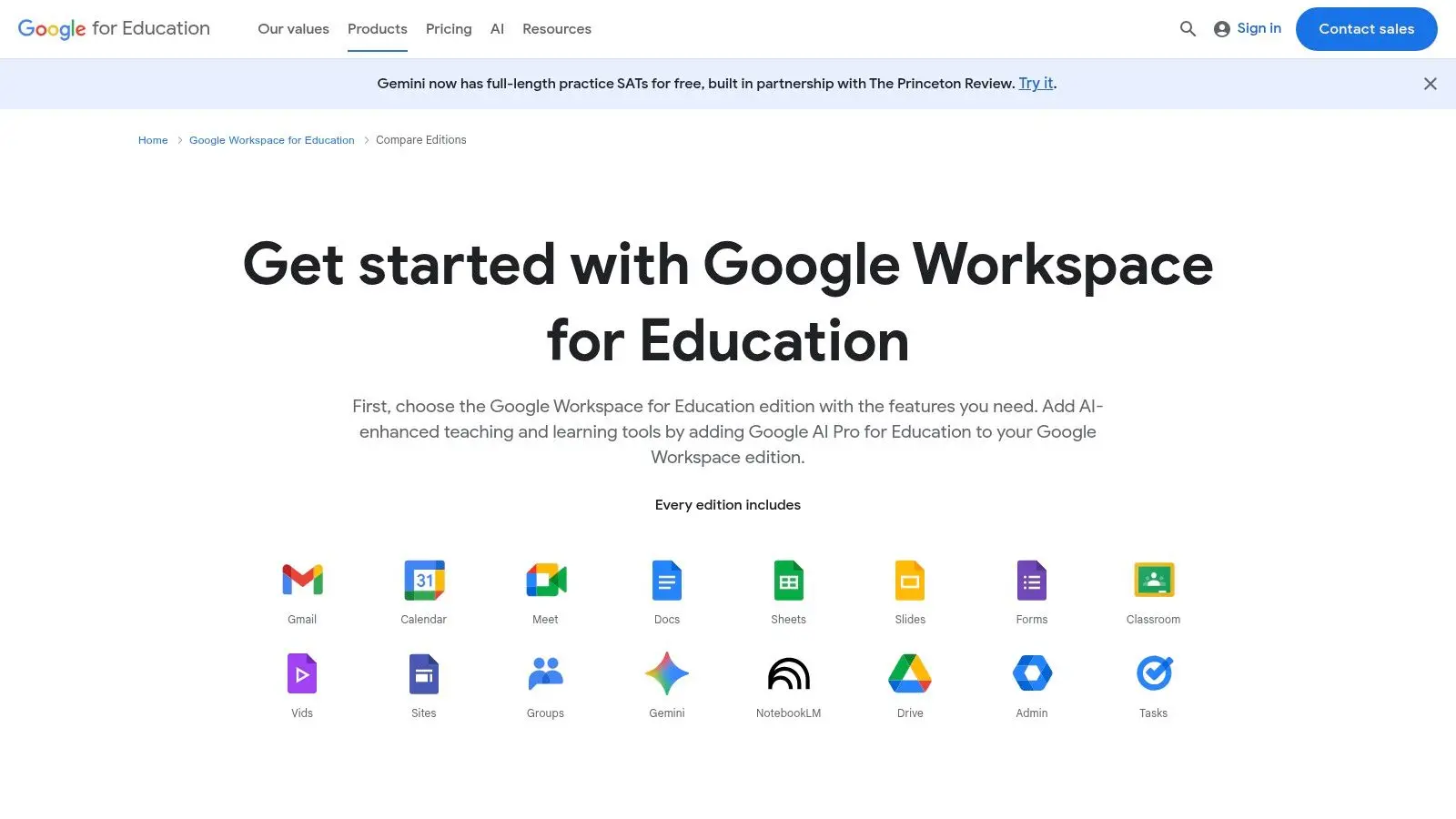
Google Classroom is the safest recommendation when a school needs a central workflow tool without months of change management. It handles assignment distribution, submissions, comments and basic organisation cleanly, and it works especially well where staff already live in Docs, Drive, Slides and Meet. For many schools, that familiarity is the biggest selling point. It also suits mixed estates. The UK has strong classroom device penetration, with 66% of children bringing devices from home or using school-provided ones in the verified Qustodio dataset (Qustodio educational apps data report). In practice, that makes browser-based, device-agnostic tools easier to sustain than anything that depends on one hardware ecosystem.
Where it works best
Google Classroom is strongest as the everyday hub for:
- •Assignment flow: Set work, attach templates, collect submissions and return feedback without email chains.
- •Lightweight consistency: Departments can standardise naming, due dates and folder structures with little training.
- •Third-party flexibility: You can plug in other specialist apps rather than forcing Classroom to do everything.
The trade-off is depth. Classroom isn’t a full MIS, and its analytics and reporting feel basic if your leadership team wants rich oversight. Paid Workspace tiers offer more, but many schools still end up pairing it with other systems.
Practical rule: Use Google Classroom as the front door, not the whole building. It’s excellent at routing work. It’s less convincing when schools try to make it their attendance, safeguarding, reporting and parent-engagement solution all at once.
If your school is also exploring more customized digital delivery, it’s worth seeing how a custom online learning platform app differs from an off-the-shelf classroom workflow tool. For product details, see Google Workspace for Education editions.
2. Microsoft Teams for Education
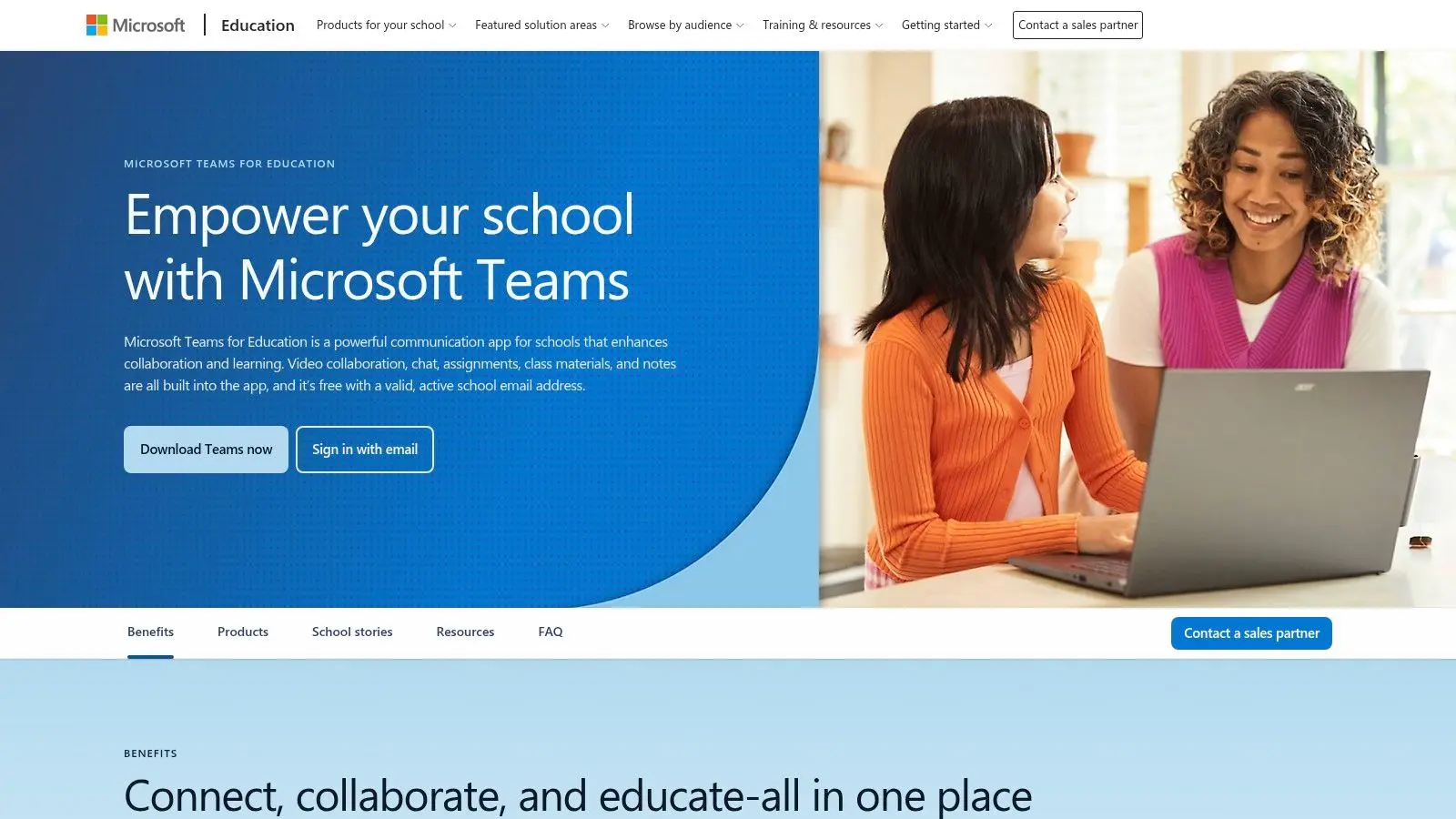
Teams for Education makes the most sense when Microsoft 365 is already the school’s operating environment. In that setup, assignments, meetings, files, OneNote Class Notebook and identity management fit together in a way that feels institution-ready. If your IT team already governs devices and permissions through Microsoft, Teams often becomes the obvious classroom layer. Its real advantage isn’t novelty. It’s control. Schools that need structured channels, meeting policies, staff collaboration and central administration tend to find Teams more comfortable than piecing together separate apps.
The good fit and the awkward fit
Teams is a strong choice when:
- •Your staff already use Outlook, OneDrive and OneNote: Adoption gets easier because people aren’t switching mental models.
- •Pastoral and academic communication overlap: Form tutors, subject teachers and support staff can work in the same environment.
- •You need effective meeting controls: That matters for remote learning, revision sessions and staff-set video policies.
It’s less elegant when the school is only partly in Microsoft 365. Teams can feel heavy if staff still prefer Google tools for day-to-day teaching, or if pupils mostly encounter it as a meeting app rather than a class workspace. Licensing variation also matters. Some features depend on which Microsoft 365 Education plan the school holds. One practical reality often gets missed. In fragmented app environments, students are already juggling a lot. The verified Qustodio data says K-12 students use a median of 72 separate applications, with sixth graders using up to 82 in that dataset. Adding Teams works best when it replaces clutter, not when it becomes another icon students ignore.
Keep Teams if it centralises communication and assignment flow. Don’t keep it just because the licence exists.
Explore the platform at Microsoft Teams for Education.
3. Seesaw
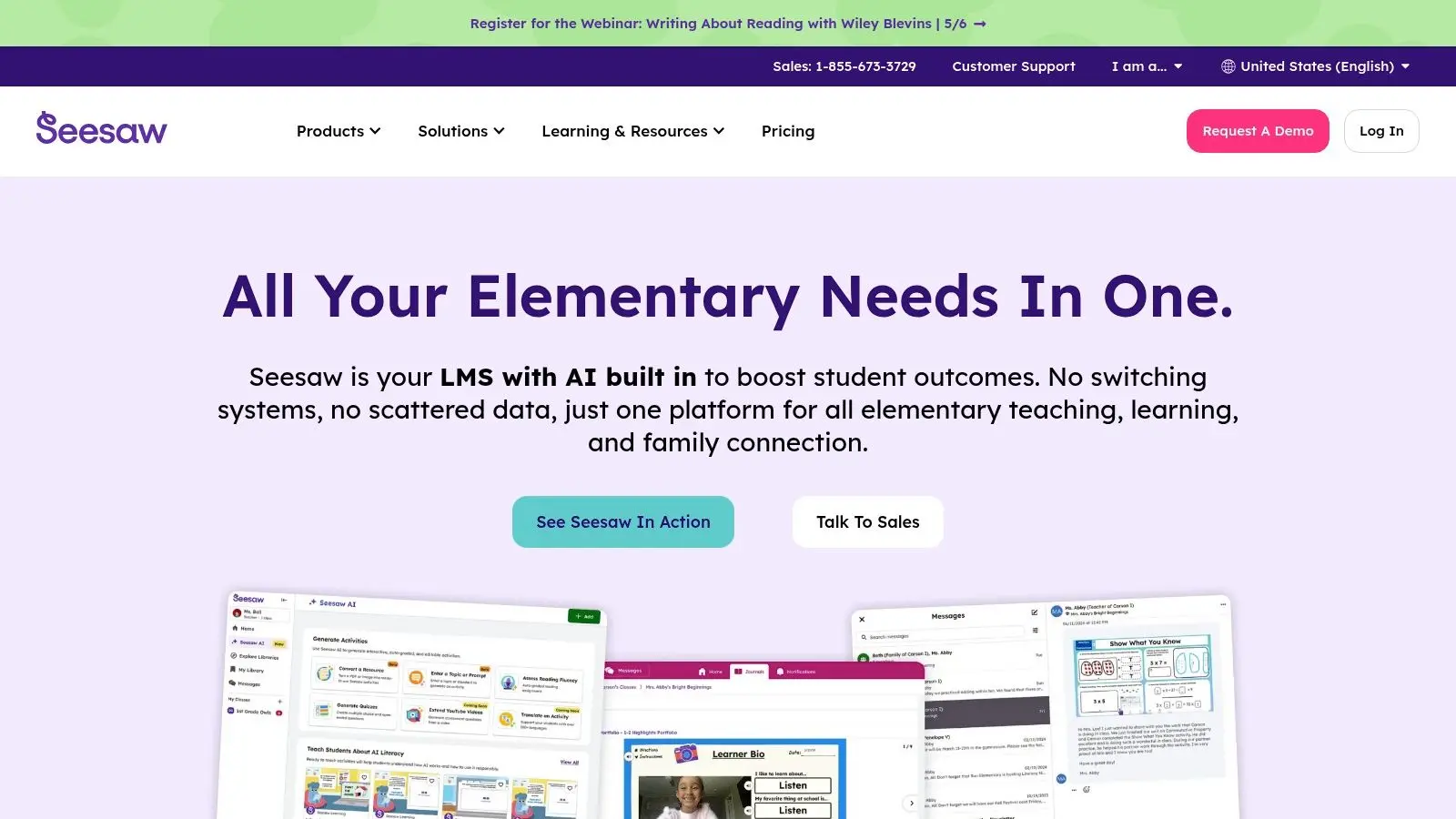
Seesaw is one of the few apps for classrooms that understands what evidence of learning looks like in primary settings. Young pupils don’t always show understanding through typed paragraphs. They explain, record, point, annotate and photograph. Seesaw is built around that reality. That makes it especially useful in EYFS and primary classrooms where family visibility matters. A quick voice note over a maths explanation or a photo of practical work often tells a richer story than a worksheet upload.
Why primary teams stick with it
Seesaw shines in three areas:
- •Multimodal evidence: Pupils can respond with voice, video, drawing and photos without needing advanced digital skills.
- •Family communication: Parents can see classroom activity in a structured way that feels more purposeful than a social feed.
- •Age-appropriate workflow: Younger children can access tasks with minimal navigation friction.
The limitation is phase fit. Secondary schools often find it too primary-facing for broad rollout, especially where departmental assessment structures are more formal. It can also become expensive if leaders want the fuller analytics and curriculum tools rather than the lighter classroom setup. There’s also a compliance angle worth taking seriously, especially for younger pupils and SEND learners. The verified SEND and privacy dataset notes that 1.57 million pupils in 2024/25 state-funded schools have SEND, representing 16.2% of the total, and the same dataset highlights frequent concerns among UK teachers about GDPR compliance and age-appropriate design (verified SEND and UK GDPR background reference). That doesn’t make Seesaw unsuitable. It means schools should audit data handling and parent access settings carefully rather than assuming a child-friendly interface equals a complete compliance answer. See the UK-facing product pages at Seesaw UK.
4. ClassDojo
How do you keep families informed without creating another login that nobody checks? In many UK primary settings, that is the main reason ClassDojo stays in use. Its strongest role is communication. Teachers can share quick updates, reminders and classroom moments in one place that parents usually learn fast. That matters more than a long feature list. A parent app only helps if families open it. Used well, ClassDojo reduces friction around day-to-day contact. Used badly, it becomes a behaviour scoreboard that staff interpret differently from room to room. I have seen both outcomes, and the difference usually comes down to school policy rather than the app itself.
Best fit: parent communication and classroom culture
ClassDojo works best where the goal is clarity and consistency, especially in EYFS and primary.
- •Class updates: Post reminders, photos of activities and simple notices without relying on paper letters.
- •Direct messaging: Keep routine parent communication in one channel instead of splitting it across email, planners and office calls.
- •Class identity: Share celebrations, routines and values in a way that supports the tone of the classroom.
The trade-off is depth. ClassDojo is not a strong choice for formal assessment, reporting or whole-school analytics. Secondary schools often find it too lightweight, and even in primary, behaviour points need careful handling. If one teacher uses points constantly and another avoids them, pupils and parents get mixed messages quickly. Set the rules before rollout. Decide whether points are visible to pupils, what gets shared with families, how staff will use messaging, and where ClassDojo stops. That last point matters. Schools get cleaner implementation when they treat it as a communication layer, not a catch-all platform. There is also a wider strategic point for school leaders. Off-the-shelf apps such as ClassDojo solve common communication problems well, but they cannot cover every use-case. If your school is exploring more immersive parent engagement, induction experiences or curriculum storytelling, a guide to app development in the UK from concept to launch is a useful reference point, especially when custom AR or VR starts to make more sense than another generic tool. Product information is at ClassDojo for schools.
5. Satchel One
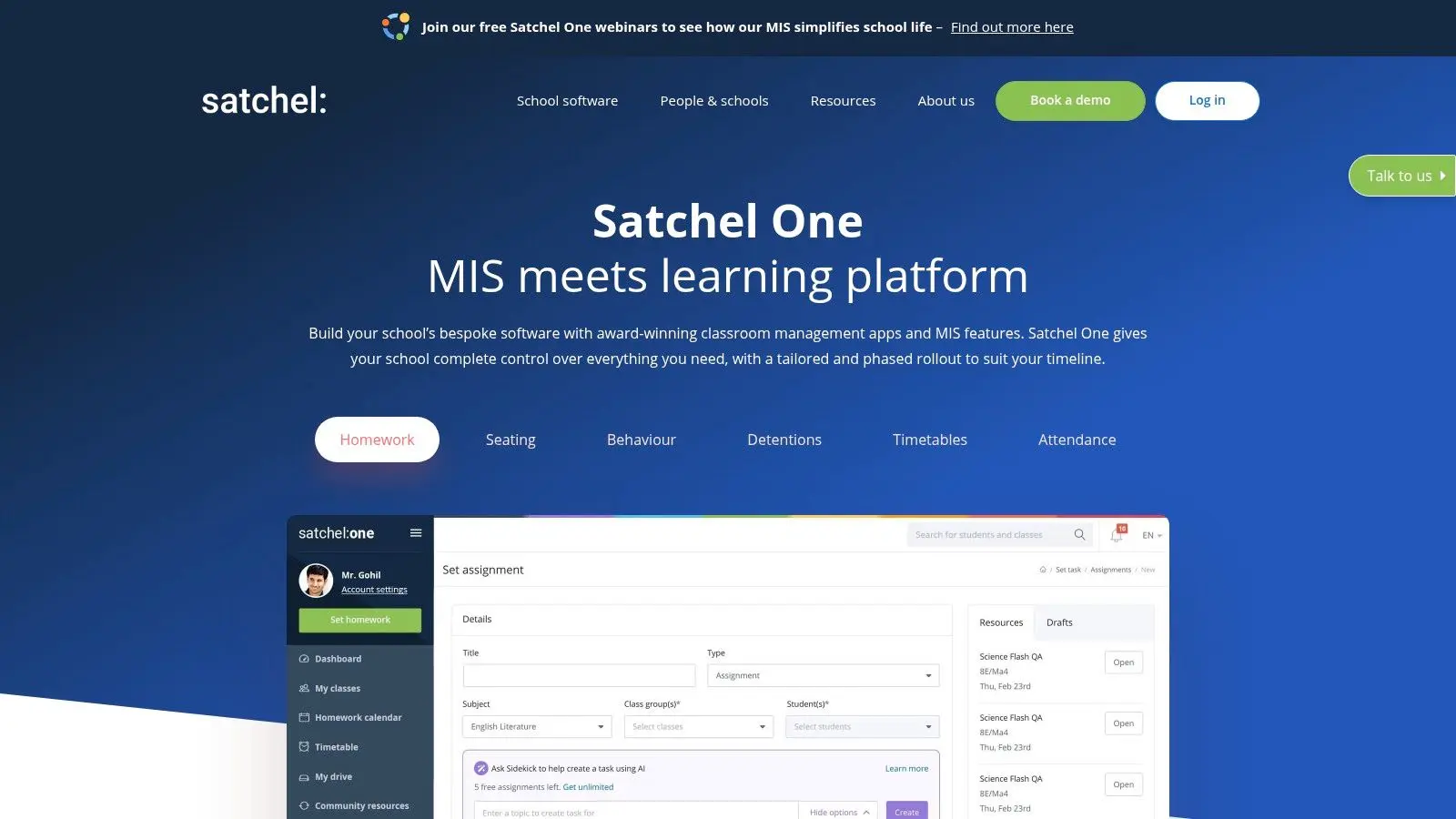
Satchel One has a strong UK fit because it was shaped around homework, parent visibility and school operations rather than imported from another system context. If your school wants one platform that starts with homework but can expand into behaviour, attendance, seating, detentions and welfare notes, Satchel One is a serious contender. Its modular design is the practical attraction. You don’t have to buy into a whole-school replacement mentality on day one. Schools can begin with the homework workflow and then decide whether the surrounding modules solve real problems.
Why secondary schools often like it
Satchel One tends to land well in secondary because the homework problem is concrete. Heads of department want consistency. Parents want clarity. Pupils need one place to check deadlines. Satchel solves that cleanly. It also integrates with Google Classroom and Microsoft Teams, which is useful if your teaching workflow already lives elsewhere. That means you can preserve subject-teaching habits while tightening up whole-school homework processes.
- •Best for: Schools that need stronger homework visibility and parent access.
- •Less ideal for: Schools hoping one purchase will remove every other system overnight.
- •Watch-out: Full MIS-style expansion brings training and process redesign with it.
Schools looking at that wider product journey should understand the delivery implications before procurement starts. A guide to app development in the UK from concept to launch is useful context if you’re comparing modular platforms with more bespoke digital builds. Visit Satchel One for current product information.
6. Firefly Learning
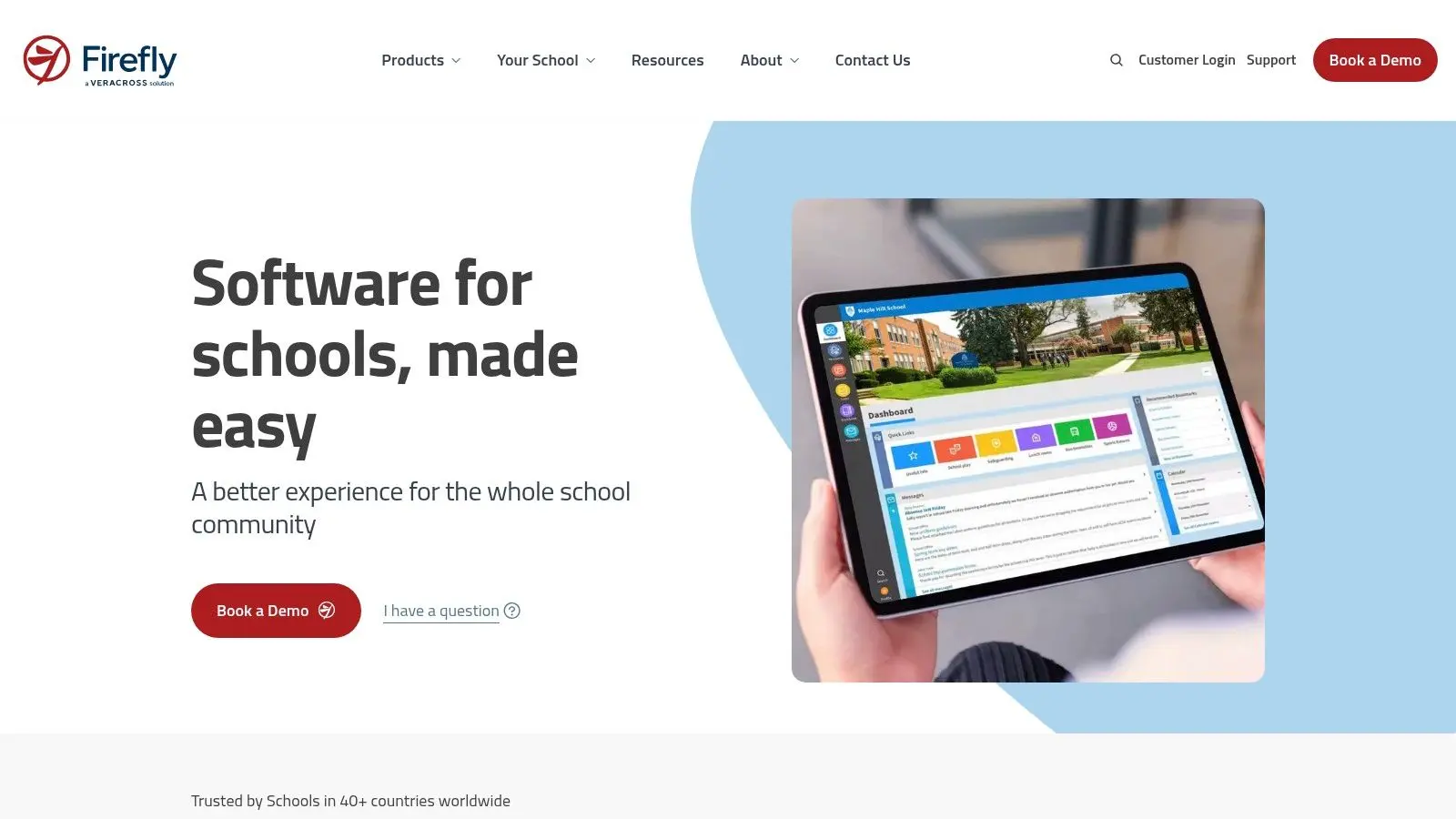
Firefly Learning sits in a slightly different category from the lighter workflow apps. It behaves more like a teaching and learning platform with parent engagement built in, which makes it attractive for independent schools, larger secondaries and trusts that want a more joined-up digital environment. The biggest strength is that it can coexist with Microsoft and Google estates rather than trying to replace them outright. That sounds mundane, but it matters. Schools often don’t need another productivity suite. They need a teaching layer that organises communication, assignments, feedback and parent visibility across the systems they already have.
Where Firefly earns its place
Firefly is worth a close look if your school needs:
- •A stronger VLE feel: Subject pages, resources, portfolios and structured communication in one place.
- •Parent communication alongside learning workflows: Useful when schools want fewer disconnected portals.
- •Integration with existing systems: Particularly where SSO and file access need to function smoothly.
The trade-off is overlap. If staff already use Teams or Google Classroom confidently, Firefly can create duplication unless leaders define roles clearly. Who sets assignments? Where do parents check updates? Where does the markbook live? Those answers need to be agreed before rollout. The broader market context helps explain why platforms like this remain attractive. The global edtech and smart classrooms market reached USD 154.29 billion in 2024 and is projected to reach USD 458.98 billion by 2033, with a 13.1% CAGR in the verified dataset, while blended learning held 42.8% market share in 2024 (Grand View Research edtech and smart classrooms market report). Schools are investing in platforms that support blended delivery. Firefly fits that pattern when the school wants a more structured digital learning layer. See Firefly Learning for product details.
7. Showbie
Showbie is one of the clearest examples of a tool that shines in the right environment and feels unnecessary in the wrong one. In iPad-heavy classrooms, it’s excellent. The speed of annotation, handwritten feedback, voice notes and threaded comments makes it one of the better feedback workflows available to teachers. You notice the difference in marking. Instead of downloading, reopening and re-uploading files, teachers can respond directly inside the work in a way that feels natural, especially for subjects where annotation matters.
Best in Apple-first classrooms
Showbie is a strong fit when:
- •Pupils use iPads regularly: The touchscreen workflow is the point, not a side benefit.
- •Teachers give rich feedback: Voice, ink and quick comments all work well.
- •You want classroom-level simplicity: It scales, but its appeal starts with the day-to-day teacher experience.
Its weaker side is cross-device consistency. It still works beyond iPad, but the experience is at its best in Apple deployments. If your school runs a heavily mixed environment, compare carefully before standardising.
A good test is simple. If teachers still mark most work on paper because digital feedback feels clunky, Showbie may solve a real problem. If they already mark efficiently in another platform, it probably won’t.
You can review the platform at Showbie.
8. Nearpod
Nearpod is what I recommend when teachers want to make direct instruction more interactive without rebuilding every lesson from scratch. It turns a slide deck into something students do, not just watch. Polls, quizzes, drawing tasks, interactive media and paced lesson modes all help teachers check understanding while the lesson is still happening. That matters because many apps for classrooms are strongest before or after the lesson. Nearpod is strongest during it.
Use it to improve live teaching
Nearpod works particularly well for:
- •Whole-class teaching with checks for understanding: Quick interactions stop passive drift.
- •Cover and independent learning: Student-paced mode gives the same materials a second life.
- •Visual and immersive explanation: VR field trips and simulations can add context when used sparingly.
The caution is workload. It’s easy to overbuild flashy lessons that take too long to prepare. The best Nearpod classrooms use a small set of recurring activity types and a clear routine, rather than throwing every interaction at every lesson. There is also a broader strategic consideration. The verified market data notes that AI-driven learning analytics, real-time student tracking, and adaptive pathways have become standard benchmarks for institutional adoption within this sector. Nearpod sits near that expectation because it gives teachers live visibility into student responses, even if schools still need to decide how much data collection is useful in daily teaching. Explore Nearpod for product options.
9. Kahoot! for Schools
Kahoot still does one classroom job better than most tools. It creates fast, visible energy. For retrieval practice, quick review, tutor time competitions and assembly-scale quizzes, it’s hard to beat because setup is simple and students understand the format instantly. That said, engagement isn’t the same as learning. Kahoot is best when teachers use it as a short retrieval or checking tool, not as the lesson itself.
Keep the game, tighten the pedagogy
The strongest Kahoot routines usually follow three rules:
- •Use short question sets: Better for retrieval and discussion than long quiz marathons.
- •Pause after key questions: The learning often happens in the explanation, not the scoreboard.
- •Review reports afterwards: The data helps identify who guessed, who knows and what to reteach.
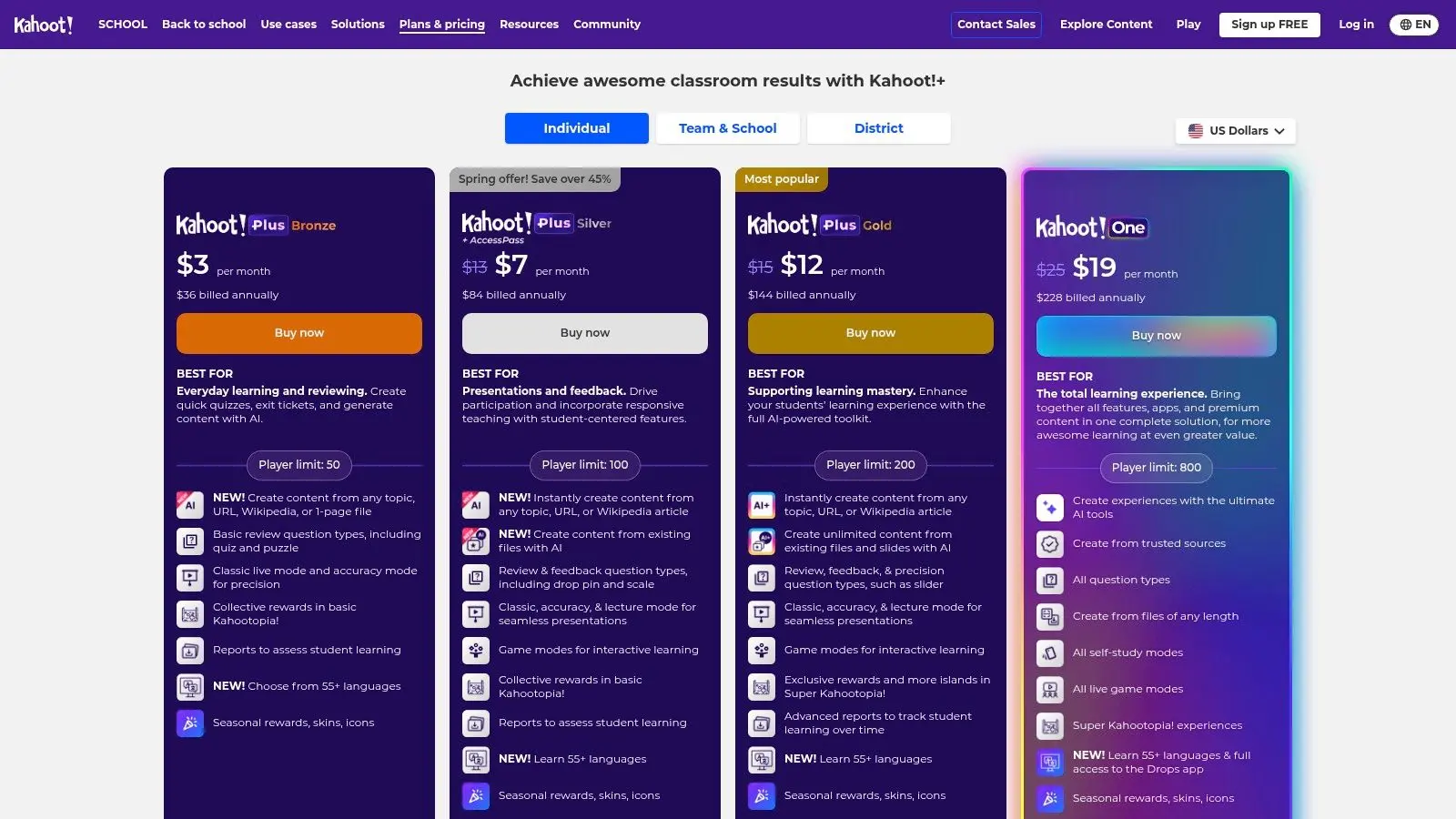
The common mistake is speed obsession. Timed competition can raise the room, but it can also flatten thoughtful responses and discourage some pupils. That’s why many teachers now alternate between live game modes and lower-pressure follow-up tasks. If you want a broader strategic view on why these mechanics work when they’re well used, this piece on gamification in education and learning engagement is a useful companion. For current plans and features, visit Kahoot! for Schools.
10. Quizizz
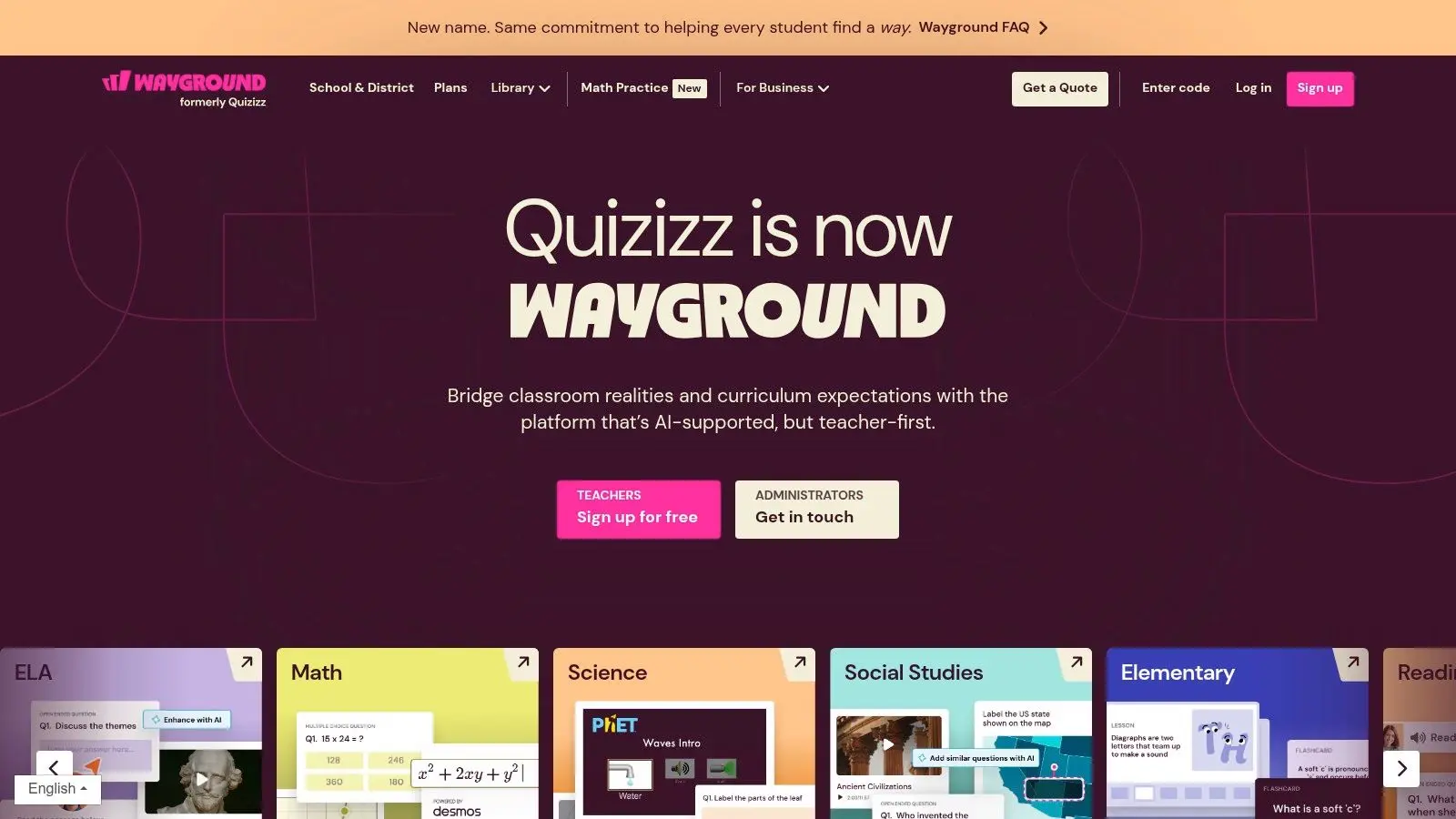
If Kahoot is the high-energy room tool, Quizizz is often the calmer, more flexible alternative. It handles live quizzes, but it’s particularly useful for student-paced practice, homework and revision because pupils can work through questions with less public pressure. That difference matters more than feature lists suggest. In many classrooms, student-paced quizzing gets a truer picture of understanding because pupils aren’t rushing to beat the leaderboard.
Better for practice than performance
Quizizz is a good choice when you want:
- •Homework and revision tasks: It extends neatly beyond the live lesson.
- •Lower-anxiety quizzing: Pupils can focus on the questions rather than the room dynamic.
- •Fast content creation: Templates and shared question banks save time.
The risk is distraction. Memes, power-ups and game elements can lift motivation, but they can also derail attention if routines are weak. Teachers need to decide whether the class is using it for retrieval, homework, revision or competition, then keep the setup aligned to that purpose. One broader context point is worth noting here rather than buried in procurement papers. The verified market dataset identifies K-12 as the largest usage category in mobile EdTech apps in 2024, accounting for over 45.9% of usage in that source. Tools like Quizizz sit squarely in that reality because they fit everyday school practice without requiring specialist hardware or lengthy onboarding. See Quizizz for current product information.
Top 10 Classroom Apps Comparison
| Product | Core features | UX / Quality | Price / Value | Target audience | Unique selling point |
|---|---|---|---|---|---|
| Google Classroom (Google Workspace for Education) | Assignment workflows, Drive/Docs/Meet integration, rubrics | ★★★★ | 💰 Free entry; paid tiers add admin/analytics | 👥 K, 12 schools, districts | ✨ Seamless Google ecosystem, easy rollout |
| Microsoft Teams for Education (Microsoft 365) | Class Teams, assignments, OneNote, secure meetings | ★★★★ | 💰 Included with M365; licence tiers (A1/A3/A5) | 👥 Schools using Microsoft 365, IT-led deployments | ✨ Robust safeguarding & enterprise admin |
| Seesaw (UK) | Pupil portfolios, family access, lesson library, multimodal evidence | ★★★★★ | 💰 Freemium; paid for full school analytics | 👥 Primary schools, families | ✨ Child-friendly portfolios & parent engagement 🏆 |
| ClassDojo | Class stories, messaging, behaviour points, portfolios | ★★★★★ | 💰 Free for schools; optional parent upgrades | 👥 Primary teachers & families | ✨ Very simple adoption; strong home, school links |
| Satchel One (Show My Homework) | Homework, gradebook, modular MIS, Google/Microsoft integrations | ★★★★ | 💰 Licence-based; pricing varies by modules/school | 👥 UK schools, secondary & whole-school admins | ✨ Modular apps + AI Sidekick for content |
| Firefly Learning | Assignments, markbook, parent comms, MIS integrations | ★★★★ | 💰 Pricing by consultation | 👥 UK schools, international private schools | ✨ UK-centric support, strong parent engagement |
| Showbie | Handwritten markup, voice notes, threaded comments, gradebook | ★★★★★ | 💰 Freemium; full admin in paid tiers | 👥 iPad-first classrooms, Apple-centric deployments | ✨ Fast multimedia feedback; great for iPad 🏆 |
| Nearpod | Interactive slides, quizzes, VR trips, real-time insights | ★★★★★ | 💰 Freemium; paid unlocks libraries & features | 👥 Teachers seeking interactive lessons | ✨ Rich activity types & large standards-aligned library |
| Kahoot! for Schools | Live quizzes, challenges, course formats, reports | ★★★★★ | 💰 Freemium; advanced features in paid plans | 👥 Whole-class events, revision, assemblies | ✨ High engagement, easy setup for any device 🏆 |
| Quizizz | Quizzes, lessons, homework, gamified practice | ★★★★ | 💰 Freemium; paid for advanced insights | 👥 Teachers for student-paced practice & homework | ✨ Gamified homework + large content library |
Beyond Off-the-Shelf The Future is Custom
What happens when the app you need for teaching does not fit any of the usual categories? For most schools, off-the-shelf tools are still the right starting point. Google Classroom, Teams, Seesaw, Showbie, Nearpod and the rest already handle the recurring work well: setting assignments, collecting responses, sharing feedback, running quizzes and keeping parents informed. The limit appears when the learning task itself is highly specific. A standard platform can organise content, but it cannot always model a factory process, place pupils inside a reconstructed historical environment, or let them test a risky science scenario safely. That is the point where custom development starts to make sense. In practice, I would only raise it after a school has been clear on the teaching problem, device access, staff capacity and success criteria. A bespoke app is harder to procure, support and update than a subscription product. It can also solve the right problem far better, especially in vocational learning, museum education, SEND provision, place-based learning, and subjects where 3D space or simulation changes understanding rather than just presentation. AR and VR are the clearest examples. If a department wants pupils to walk through a Roman settlement tied to the local scheme of work, inspect components inside an engine, or rehearse a procedure before entering a workshop, generic classroom apps will only get part of the way there. A purpose-built experience can be designed around the exact curriculum objective, the age group, and the hardware a school has. Custom does not mean replacing your core platform. It usually means adding one focused tool for one high-value use case, then deciding whether it earns a wider rollout. That approach keeps risk under control. It also stops schools from commissioning expensive software for a problem that a better workflow inside an existing app could have handled. Governance needs to be part of the brief from the start. Any custom or AI-supported classroom tool should be reviewed for data handling, safeguarding, hosting, accessibility, and what staff will need to manage it day to day. Those questions matter even more in under-13 settings and SEND contexts, where a clever idea can fall apart quickly if consent, privacy or access needs were treated as an afterthought. If you are weighing a bespoke build against configurable software, F1Group's custom software insights gives a useful business-side view of that decision. For the learner-side picture, Maeve's guide for student apps is a helpful reminder that the best toolset usually combines school-wide platforms with lighter, task-specific apps students can use independently. For institutions, trusts, museums or education partners exploring immersive learning, interactive apps or curriculum-specific digital experiences, Studio Liddell is one example of a creative studio working across apps, animation and XR production. If you’re exploring apps for classrooms and need something beyond a standard platform, Studio Liddell can help scope interactive learning apps, bespoke digital experiences and XR content around a specific teaching objective.