Unity VR development for immersive, high-performance VR experiences
Unity VR development gives businesses the tools to create immersive, high-performance applications for PCs, mobiles and standalone headsets. Picture it like a film set: every scene is carefully directed, every interaction follows a clear shooting script.
Why Unity VR Development Matters For Businesses
Unity’s familiar editor arrives with performance monitoring and profiling built in, so teams can jump straight into prototyping and cut technical guesswork. By leaning on its rich toolkit, organisations move faster from proof of concept to production-ready builds.
- •Cross-Platform Deployment spanning headsets, mobiles and tablets
- •Interactive Training Modules that trim onboarding time by 40%
- •Virtual Showrooms for hands-on product demos and real-time feedback loops
- •Rapid Iteration through live updates, cloud builds and instant testing
In the UK, immersive tech powered by Unity pulled in USD 2,238.8 million in 2023, underlining its commercial impact. For a full breakdown, see the Grand View Research report. To explore deeper production strategies, head to our guide on Virtual Reality Application Development.
How Unity Fits Across Platforms
With Unity, you write your core project once and deploy it across PC headsets, mobile AR modules and standalone devices. That “single-build” approach slashes time to market and eases support as hardware evolves. Below is Unity’s VR setup in the editor, showing scene hierarchy and interaction components:
This view highlights how GameObjects connect directly to VR inputs, streamlining scene assembly and cutting down on configuration errors.
Key Benefits of Unity VR Development
Here’s a quick reference to the primary advantages businesses gain by using Unity for VR projects:
| Benefit | Description |
|---|---|
| Cross-Platform Reach | Deploy once to PC, mobile and standalone devices |
| Rapid Prototyping | Instant edits and play-in-editor feedback |
| Engaging Interaction | Native support for controllers and hand tracking |
| Cost Efficiency | Reuse assets to lower overall development costs |
This summary gives your team a solid launchpad before you dive into optimisation, AR/XR extensions or AI integrations.
What’s Next In Unity VR
- •Understanding scene management as if you’re staging a live performance
- •Delving into rendering pipelines and performance optimisation
- •Integrating AR, XR and AI tools for richer experiences
- •Reviewing real-world business case studies
Understanding Key Concepts Of Unity VR
Creating a VR experience in Unity often feels like directing a play. You arrange sets, props and stage directions to guide the audience through your world. Each asset, whether a 3D model, audio clip or shader, is a building block that teams can swap or tweak in seconds during prototyping. Scripts then serve as the scene directions, listening for input, triggering events and shaping the user’s journey. Before you dive into code, it pays to master scene management. Think of each scene as an act in your production, letting you focus on one segment at a time.
Scene Management And Staging
Every Unity scene is a mini-stage populated by GameObjects, from cameras to interactive props. The Hierarchy window organises these “actors” into a clear, logical outline. Lighting works much like theatre spotlights, adjust intensity and colour to guide attention and optimise performance.
- •Purpose of Scenes: Organise assets and manage load times
- •Layers And Tags: Group objects for efficient collision detection and rendering
- •Additive Loading: Stitch scenes together for seamless transitions
With your scenes in place, you’re ready to address input and interaction. Unity’s XR Interaction Toolkit streamlines controllers, hand gestures and UI events.
Scripts And Interaction Tools
Writing C# scripts is akin to giving your digital actors precise lines. Attach a script to a GameObject, and it reacts to its cue, updating visuals or spawning effects. Input systems capture data from headsets, controllers or hand-tracking sensors. Mapping those signals to methods ensures your users move through the world with ease.
Using Unity’s XR toolkit can cut integration time by up to 50% compared with custom input handlers.
Physics simulation adds crucial authenticity. Unity’s PhysX engine handles collisions and rigidbodies so interactions feel natural. For instance, a ball floating in zero gravity will suddenly drop when you tweak the gravity setting. Tuning parameters like mass, drag and constraints is key to immersion.
- •Rigidbody Properties: Mass, drag and constraints
- •Collision Layers: Optimise which objects interact
- •Gravity Settings: Balance realism and frame rate
In fact, the UK’s VR market hit USD 1.8 billion in 2024, largely driven by Unity VR’s flexibility and vibrant community support. Discover more insights about the UK virtual reality market on IMARC.
Asset Pipeline Essentials
Importing assets feels like stocking a theatrical prop room. Unity supports FBX, OBJ, PNG and WAV, so you can shuttle files between modelling suites and audio editors. Texture compression and mipmaps help manage memory budgets, ensuring smooth frame rates on headsets such as Quest 2 or Valve Index.
| Asset Type | Format Support | Memory Considerations |
|---|---|---|
| Meshes | FBX, OBJ | Polygon count, LOD |
| Textures | PNG, JPEG | Resolution, compression |
| Audio | WAV, MP3 | Sample rate, bitrate |
Prefabs act as reusable set pieces. A single “door” prefab might include models, scripts and animations, ready to drop into any scene.
Putting It All Together
When you combine scenes, scripts, assets and physics, you end up with a fully playable VR prototype. Unity’s Play Mode lets stakeholders step in and review changes in real time.
- •Scenes staged like production acts
- •Scripts directing dynamic interactivity
- •Asset pipelines feeding props and environments
- •Physics simulations adding tactile realism
This modular approach accelerates iteration and minimises risk before full-scale production. Once you’ve mastered these fundamentals, you’ll be ready to explore optimisation techniques, AR extensions and AI-driven enhancements.
Production Pipeline And Technical Stack
Every Unity VR project follows a deliberate path, weaving together imagination and engineering at every turn. From the first spark of an idea to that satisfying final build, each phase adds depth, polish and performance to your virtual world.
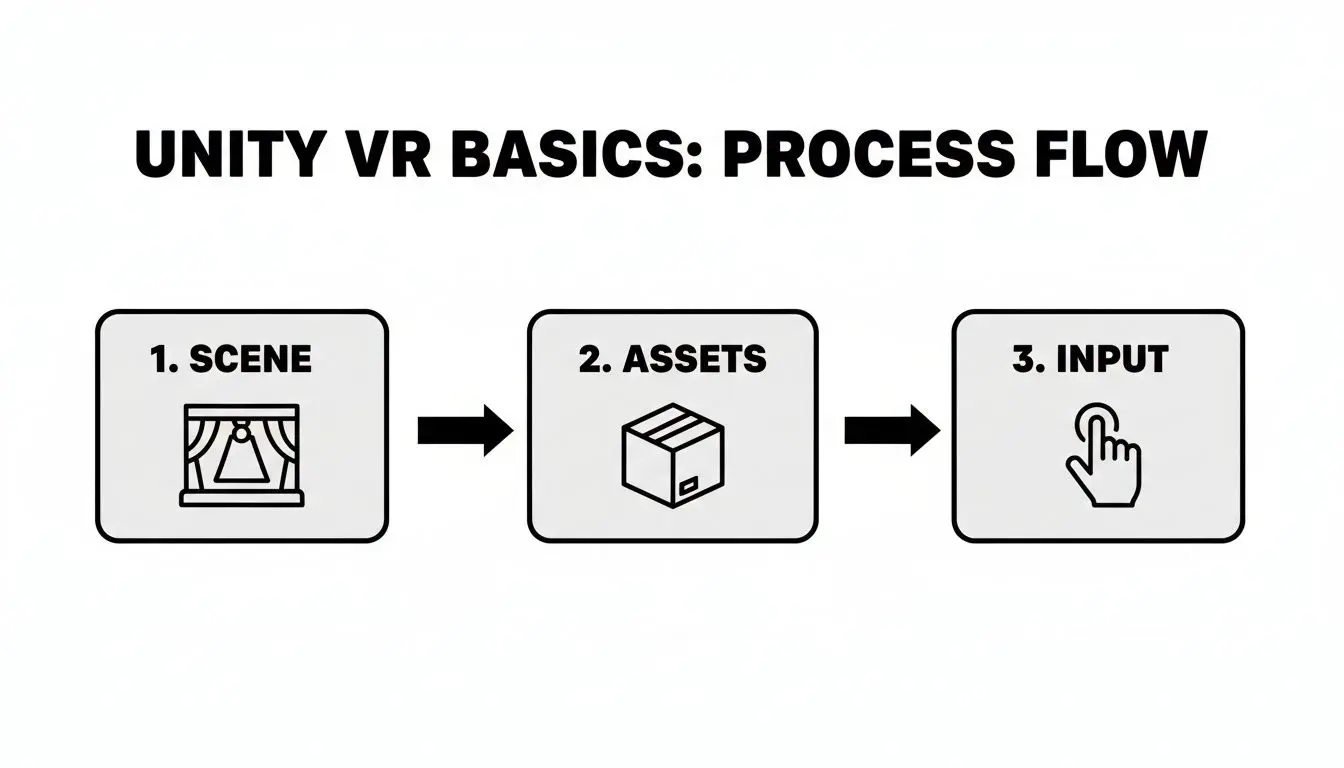
This infographic maps out the step-by-step journey, showing how scenes, assets and interactions slot together to keep everyone aligned and prototypes flexible.
Pre-Production And Storyboarding
In pre-production, ideas take shape on paper and screen. You’ll:
- •Sketch concepts and assemble mood boards to nail the right tone and scale.
- •Craft detailed storyboards that chart user journeys scene by scene.
- •Write technical specs covering hardware targets, performance budgets and integration points.
A solid plan here slashes rework down the line and keeps the team focused.
Asset Creation And Integration
Once the script is locked, it’s time to build your world:
- •3D modelling and UV mapping to create environments and props.
- •Texture painting and Shader Graph setups that balance visual quality with frame-rate needs.
- •Rigging, animation and physics tweaking, ensuring every object feels natural under your user’s gaze and touch.
By integrating assets as you go, you’ll catch issues early and maintain that all-important creative momentum.
Technical Stack Components
A dependable suite of tools forms the backbone of any Unity VR endeavour:
- •Unity Editor for real-time scene assembly and play-testing.
- •C# scripting to power interactive elements and game logic.
- •URP or HDRP render pipelines to dial in the right mix of fidelity and performance.
- •XR Interaction Toolkit for controller input, hand-tracking and haptics.
- •Unity Profiler alongside tools like Apollo to monitor CPU and GPU loads.
- •Official device SDKs, from Oculus Quest to PC VR and mobile headsets.
With 60% of the UK virtual reality gaming market behind Unity, and forecasts rising from USD 495.86 million in 2025 to USD 785.08 million by 2035, it’s clear why teams bet on this ecosystem. For a deeper dive, see the UK Virtual Reality Gaming Market Report.
Pipeline Stages and Team Roles
Below is a snapshot of each development stage, the core activities that happen there and the roles that drive them.
| Stage | Key Activities | Key Roles |
|---|---|---|
| Pre-production | Concept design, storyboarding, technical specifications | Producer, Designer |
| Production | 3D modelling, animation, scripting, asset integration | Artist, Animator, Developer |
| Post-production | Lighting, optimisation, QA testing, final build | Technical Artist, QA Lead |
This breakdown helps prevent bottlenecks and ensures everyone knows when to jump in.
Clear pipelines keep teams connected, reduce duplication and steer projects towards launch on time and on budget.
For hands-on advice with physics tuning, check out our guide: How to Add Physics to Your Unity VR Worlds
Next Steps And Optimisation
With the core build in place, it’s time to fine-tune performance and comfort:
- •Set up Levels of Detail (LOD) to swap high-poly models for lighter versions at a distance.
- •Implement occlusion culling so off-screen geometry doesn’t sap your GPU.
- •Bake lightmaps to cut down on real-time shading overhead.
- •Profile on target hardware, aim for a rock-solid 90 fps to avoid motion sickness.
- •Use tools like Frame Debugger and RenderDoc alongside the Unity Profiler.
- •Compress textures and audio to shrink build size by up to 30%, speeding downloads and freeing memory.
With a clear pipeline and the right tech stack, you’ll be ready to scale from prototypes to polished VR experiences. Studio Liddell’s teams are on hand to guide every stage, from storyboards to store submission, so you hit your goals on time and within budget. Next, we’ll explore advanced optimisation tactics and AR/XR integrations. Stay tuned for real-world case studies and measured outcomes.
Optimization And Best Practices For Unity VR
Performance is the backbone of any comfortable VR session. When frame rates stutter or latency drifts upward, users notice immediately, and not in a good way. In Unity VR work, our goal is to keep visuals crisp and motion fluid. Every project benefits from a clear checklist of techniques. Below, you’ll find a hands-on guide to boosting quality without sacrificing smooth operation.
Boosting Frame Rates
Reducing draw calls is the quickest win. Think of each call as a small trip your GPU takes, fewer trips mean faster results. • Organise meshes by material to enable static batching. • Use GPU Instancing for objects you see repeated often. • Turn on occlusion culling in Unity’s settings to skip hidden items.
“Reducing draw calls by 50% can jump frame rates from 60fps to 90fps on mid-range headsets.” , XR Technical Lead
Managing Level Of Detail
Level of detail (LOD) feels like swapping heavy luggage for a light backpack once you’re further away. Unity’s LODGroup component automates that swap.
- •LOD0 (High detail) for close-up views
- •LOD1 (Medium) when the camera is a few metres back
- •LOD2 (Low) for background scenery
| LOD Stage | Triangles | Use Case |
|---|---|---|
| LOD0 | 50,000 | Close inspection |
| LOD1 | 20,000 | General gameplay |
| LOD2 | 5,000 | Distant objects |
This table helps artists and tech leads agree on poly budgets from day one.
Using Unity Profiler
The Unity Profiler is your microscope for performance issues. Plug in your headset or hit Play in the Editor, then capture a snapshot during normal play.
- Add profiling calls in your Update loop:
- Record a session as someone moves around.
- Spot spikes in the CPU Usage pane and drill into slow shaders or physics.
Key takeaway: Tackle the top 3 bottlenecks first to reclaim 20, 30% of performance in a single sprint.
Reducing Texture Overhead
Textures can gobble memory fast. Compress with ASTC or ETC2 on devices like Quest 2 and watch your build size shrink.- •Enable mipmaps to boost cache performance.
- •Pick compression formats that match your headset.
- •Preview in the Editor so you don’t end up with ugly artefacts.
A slimmer texture set also shortens load times and cuts streaming stutters.
Optimising Scripts And Shaders
Frequent allocations in Update loops trigger garbage collection hitches, and nothing kills a demo like a sudden pause. Instead, pool your objects. Shader complexity affects both GPU and CPU. Bake static lights into lightmaps where possible, and avoid real-time reflections in shaders.
- Profile scripts to find GC allocations.
- Switch static scenes to baked lighting.
- Use Shader Graph to inspect instruction counts.
Common Pitfalls And How To Fix Them
• Overloaded post-processing stacks can halve your frame rate. Bake or strip out what you don’t need. • Huge meshes can crash mobile VR. Split them and assign LOD groups. • Complex physics queries can stall the main thread. Swap in simple colliders and tweak sleep settings.Avoiding these traps ensures every Unity VR build runs smoothly, every time.Studio Liddell audits your Unity VR project to find hidden CPU and GPU bottlenecks. We set up custom LOD groups, fine-tune texture compression and profile your scripts to lock in stable frame rates. Schedule a performance review to deliver worry-free VR experiences.
Integrating AR XR And AI In Unity VR Projects
 Mixing AR XR and AI can take your Unity VR build to a whole new level. Static scenes gain layers of context and characters respond with genuine intelligence. Before you know it, a standard VR demo becomes an interactive mixed-reality solution that adapts to each user. Key Integration Points Include:
 - •Spatial Mapping with AR Foundation for real-world anchoring
- •Gesture Input that turns natural hand motions into in-game commands
- •AI-Driven Behaviours powered by ML-Agents and natural language processing
AR Foundation Spatial Mapping
Adding AR Foundation is like giving your VR app a new sense of space. It scans surfaces at millimetre precision and pins digital objects onto tables or walls. Once it’s up and running, content stays exactly where you place it, even as you move around. Follow These Steps:
- Install AR Foundation via Unity Package Manager
- Tweak AR session and subsystem settings
- Enable AR support in XR Plug-in Management
Gesture Input Integration
Imagine controlling your VR experience just by moving your hands, no hardware controllers required. Unity’s XR Interaction Toolkit brings hand tracking to life, whether you use AR Foundation or a device-specific SDK. Try This Workflow:- •Enable hand-tracking support in Project Settings
- •Map gestures to actions through Interaction Profiles
- •Validate your mappings in Play Mode and on headset hardware
It’s a bit like choreographing a dance: each gesture cues a specific event in your virtual space.
Embedding AI Features
AI adds another layer of immersion by powering intelligent agents and voice control. You could issue natural language commands like “show me the next step” or “highlight that part,” and have the system respond on the fly. In one pilot, adaptive guides cut training time by 30%. Core AI Capabilities:
- •Natural language voice commands for navigation and help
- •ML-Agents for dynamic NPC pathfinding and behaviour
- •Generative AI that creates environment content as you go
Embedding AI empowered our demo to feel more responsive than static VR scenes. , XR Designer
Mixed Reality Overlays
Sometimes all you need is a few well-placed annotations. Mixed reality overlays let you layer text, icons or live data on top of your VR world without pulling users out of the experience. Practical Examples:
- •AR callouts highlighting machine parts during assembly
- •Live performance metrics floating beside dashboards
- •Step-by-step guides that follow the user’s gaze
Procedural Environment Generation
Generative AI can spawn entire landscapes or unique assets at runtime. Picture a forest that reshapes itself based on user choices, every session feels fresh. For instance, you might create an Agent subclass by overriding `OnActionReceived` in your script: public class AdaptiveAgent : Agent { public override void OnActionReceived(ActionBuffers actions) { // AI-driven movement logic } }
| Feature | Benefit |
|---|---|
| Natural Language Commands | Hands-free control |
| ML-Agents Behaviour | Adaptive NPC interactions |
| Procedural Environment Scripts | Infinite content variation |
Together, these tools let your VR experiences evolve endlessly.
Integrating Voice Commands
Voice control makes your project more accessible and cuts down on controller dependency. Unity’s Windows Speech API or a third-party solution can pick up phrases like “next step” or “inspect part” and turn them into in-scene actions. Quick Setup Checklist:
- •Define keywords and grammar files
- •Map recognised phrases to event handlers
- •Test recognition accuracy in busy audio environments
Next Steps
Start by prototyping a small AR/AI scene to explore the possibilities. Studio Liddell can support your project from initial architecture through to testing and launch. Imagine AR annotations that guide users while AI voice assistants answer questions in real time. Turn routine manuals into interactive training that adapts on the fly.
Industry Case Studies and Outcomes
Companies see real returns when they commit to Unity VR development. These case studies illustrate how immersive experiences boost engagement, accelerate decisions and cut training budgets. We look at a luxury retailer that lifted customer interaction by 40%, an architectural firm that halved its review cycle and a healthcare provider that trimmed onboarding hours by 75%.
Luxury Retail Engagement Trial
A premium fashion label piloted an in-store VR app allowing shoppers to try on outfits without a physical changing room. Success was measured by longer station visits and repeat trips.
- •40% boost in session length per visitor
- •Prototype to launch in 8 weeks
- •Integrated real-time analytics for heatmap tracking
The team built assets in Unity, optimised shaders for vivid visuals and ran phased user tests. Rapid feedback loops meant tweaks could be rolled out before full launch.
Architectural Walkthrough Efficiency
An architectural practice used a VR walkthrough to guide stakeholders through planned developments. The aim was to slash in-person tour time and speed up approvals. Core steps:
- Model import from Revit to Unity
- Interactive hotspots via XR Interaction Toolkit
- Client reviews on a standalone headset
Cutting decision time by 60% freed up senior team hours and drove faster sign-off.Iterative feedback cycles meant changes were in place within 48 hours, avoiding costly on-site revisions.
Healthcare Simulation Impact
A clinical training department developed a VR simulation for emergency response drills. Trainees tackled high-pressure scenarios with on-screen guidance and performance scoring. Results included:- •75% reduction in instructor-led seminar time
- •30% rise in procedure accuracy on assessments
- •Annual savings of £25,000 in training costs
C# scripts drove branching scenarios and Unity’s UI system delivered dynamic prompts. This hands-on approach boosted retention and confidence.
Comparative Outcomes Table
| Sector | Key Metric | Timeframe |
|---|---|---|
| Retail | 40% engagement uplift | 8 weeks |
| Architecture | 60% decision-time reduction | 4 weeks |
| Healthcare | 75% training-time cut | 6 weeks |
This snapshot shows how clear success metrics and fast iterations keep projects on track and deliver value quickly. Check out our mixed reality event game for Meta Quest in our case study Dance! Dance! Dance! VR Game to see how Studio Liddell scales prototypes to production.
Measurable success comes from aligning technical execution with clear business objectives.
Key Lessons Learned
Defining goals and tracking data from day one sets the foundation for success. Picking the right metrics, like dwell time or decision hours, helps the team stay focused. Keep these pointers in mind:
- •Plan prototype tests with scripts that capture user behaviour
- •Use analytics dashboards to spot friction points early
- •Iterate visuals and interactions in short cycles to maintain momentum
- •Allocate time for at least two user-feedback rounds
Embedding these habits ensures every Unity VR development project stays in step with real user needs and business goals. When you plot out your next VR initiative, remember to:
- •Set clear metrics for success
- •Keep feedback cycles brief and frequent
- •Roll out features in phases
These examples show how Unity VR development turns investment into measurable results. Whether you’re in retail, architecture or healthcare, clear KPIs and fast iteration deliver significant impact. Studio Liddell offers end-to-end support from concept to delivery. Book a VR concept sprint to define your success metrics and start driving results today.
Conclusion And Future Directions
In business VR projects, Unity offers a clear route to scale immersive experiences with robust performance. It feels less like wrestling with tech and more like assembling a puzzle you’ve solved before. Its modular architecture works like a box of Lego bricks, letting teams swap components without rebuilding the core scene. Meanwhile, thoughtful performance optimisation keeps frame rates above the comfort threshold , a vital step to sidestep motion sickness. Layer in AR, XR and AI tools and you turn static environments into living worlds that respond to every move. Consider three strategic pillars:
- •Modular Design For Rapid Iteration And Reuse
- •Performance Optimisation For Stable Frame Rates
- •Integration Potential Across Platforms And Devices
Emerging Trends In Unity VR
Cloud-based VR streaming is set to shift heavy rendering to data centres. That means richer graphics on entry-level headsets, without sacrificing speed. Soon, AI-driven personalisation will tune each session to individual behaviour , imagine a training module that adapts its challenge in real time. And tighter cross-platform convergence ensures updates hit PC, mobile and standalones at once. No more juggling separate builds. Decision-makers should think beyond the initial build. Budget for ongoing maintenance, invest in hands-on training, and consider a studio partnership when expertise in specific areas makes sense.
Investing in staff training and data-driven QA ensures your VR builds return value faster and avoid costly rework.
When you’re ready for the next sprint, plan it with Studio Liddell.
FAQ
Planning a Unity VR project often brings up the same questions. Below are clear, experience-driven answers to help you move ahead with confidence.
Common Questions
- What Hardware Do I Need for Unity VR Development?
- How Long Does a Basic VR Project Take?
- Can I Integrate AI into My VR Experience?
- How Do I Optimise Performance for Smooth VR?
- •Batch meshes and textures to cut down draw calls
- •Apply occlusion culling so the GPU only renders what’s visible
- •Tweak shaders for efficiency
- •Use LOD (Level of Detail) to manage distant objects
Following these steps should help you sustain 90 fps for a seamless VR experience. Studio Liddell https://studioliddell.com