Master Apps Update Automatically Android
You open the Play Store because one app is behaving oddly, tap “Update all”, and then realise you've been doing device maintenance by hand for months. That's often how users discover their Android update setup isn't really a setup at all. It's just habit. If you want apps update automatically on Android, the fix is simple at first. The annoying part comes later, when one app refuses to update, a Samsung phone ignores the setting, or a work profile overrides what you picked. That's where most guides stop. This one doesn't.
Why You Should Let Your Android Apps Update Automatically
Manual updates sound harmless until you miss the app that actually mattered. Banking apps, password managers, messaging tools, and work apps don't only change appearance. They ship fixes, compatibility updates, and security patches on their own schedule, not yours. The practical reason to enable auto-update is simple. Top Android apps are updated on average every 58 days, and without automatic updates your device could miss nearly two critical security or feature versions per quarter, according to Statista's Android app update frequency data. If you only remember to check the Play Store occasionally, you're almost guaranteed to run behind. That lag creates three problems:
- •Security exposure: Older app versions can sit on your phone long after a patch is available.
- •Feature mismatch: One person in a group chat has the new function, you don't.
- •Stability issues: Apps and Android itself keep moving, and older builds can start acting strangely.
Practical rule: If an app handles money, messages, identity, or work access, don't rely on memory. Let it update itself.
There's also a less obvious benefit. Auto-updates reduce the mental overhead of phone maintenance. You stop checking version numbers, stop chasing bugfix notes, and stop wondering whether an app problem is just because you're behind. People who work around app stores often see this from the other side too. Teams focused on discoverability, release cadence, and store presence know that update timing matters, which is why app store optimisation and release management go hand in hand. Users feel the result when their phone installs the update on time. If you want your Android phone to feel predictable, secure, and current, auto-update is one of the few settings worth turning on and then forgetting.
How to Control Global Auto-Update Settings
The master switch lives inside Google Play, not in your phone's main Settings app. That trips people up all the time. To set global automatic updates:
- Open Google Play Store.
- Tap your profile icon in the top right.
- Go to Settings.
- Open Network preferences.
- Tap Auto-update apps.
- Choose the option that matches how you want updates handled.
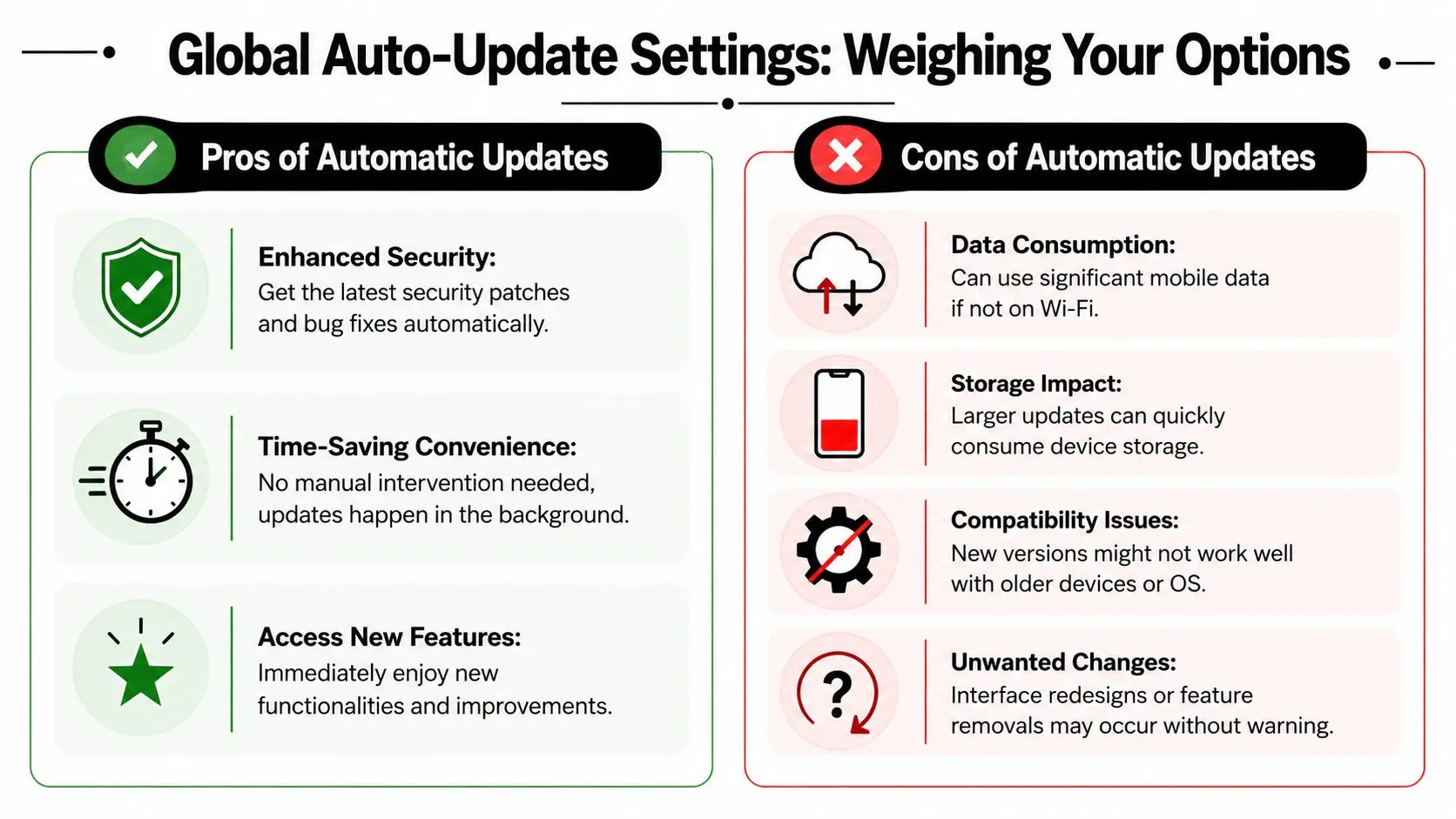
What each Play Store option actually means
Google Play offers a few routes, but the practical decision usually comes down to speed versus data usage. 38% of top Android apps are updated at least once a week, which is why selecting Update over Wi-Fi only is such a sensible middle ground if you want frequent updates without eating into mobile data, based on 42matters app update frequency statistics. Here's the practical trade-off:| Setting | Best for | Upside | Downside |
|---|---|---|---|
| Update over Wi-Fi only | Most people | Saves mobile data and still keeps apps current when you're regularly on Wi-Fi | Urgent updates may wait until you reconnect |
| Update all apps over Wi-Fi or mobile data | People who travel, work remotely, or rely on critical apps | Fastest route to patches and fixes | Can use mobile data unexpectedly |
| Update with limited amount of mobile data | People who can access the feature and want tighter control | More flexible than Wi-Fi only | Availability is limited and not exposed to everyone |
| Don't auto-update apps | Only for temporary troubleshooting | Full manual control | Easy to forget, easy to fall behind |
If your phone leaves home every day and your key apps need to stay current, “Wi-Fi only” is safe but not always fast enough.
Which setting I'd choose in practice
For most personal phones, Update over Wi-Fi only is the sweet spot. It catches routine updates without turning your data plan into the casualty. For a workhorse device, especially one carrying banking, authentication, travel, or communications apps, Update all apps over Wi-Fi or mobile data makes more sense. You'll spend a bit more battery and possibly some mobile data, but you remove the waiting game. There's also a lesser-known setting, Update with limited amount of mobile data. Google notes that it's only available to a limited group of users in the UK. If you see it, it's worth testing if you want more flexibility than Wi-Fi only but don't want unrestricted mobile data use. Most guides ignore it. It's real, just not universally available. For broader context on how Android and iPhone distribution differ at store level, this comparison of the App Store vs Google Play Store is a useful companion read.Managing Automatic Updates for Individual Apps
Global settings are blunt instruments. Sometimes that's fine. Sometimes you need exceptions. A good example is a banking app or password manager you always want patched quickly. The opposite case is a game, home gadget app, or niche tool that occasionally ships buggy releases and is safer to update manually after you've checked user feedback. The per-app control is built into each Play Store listing.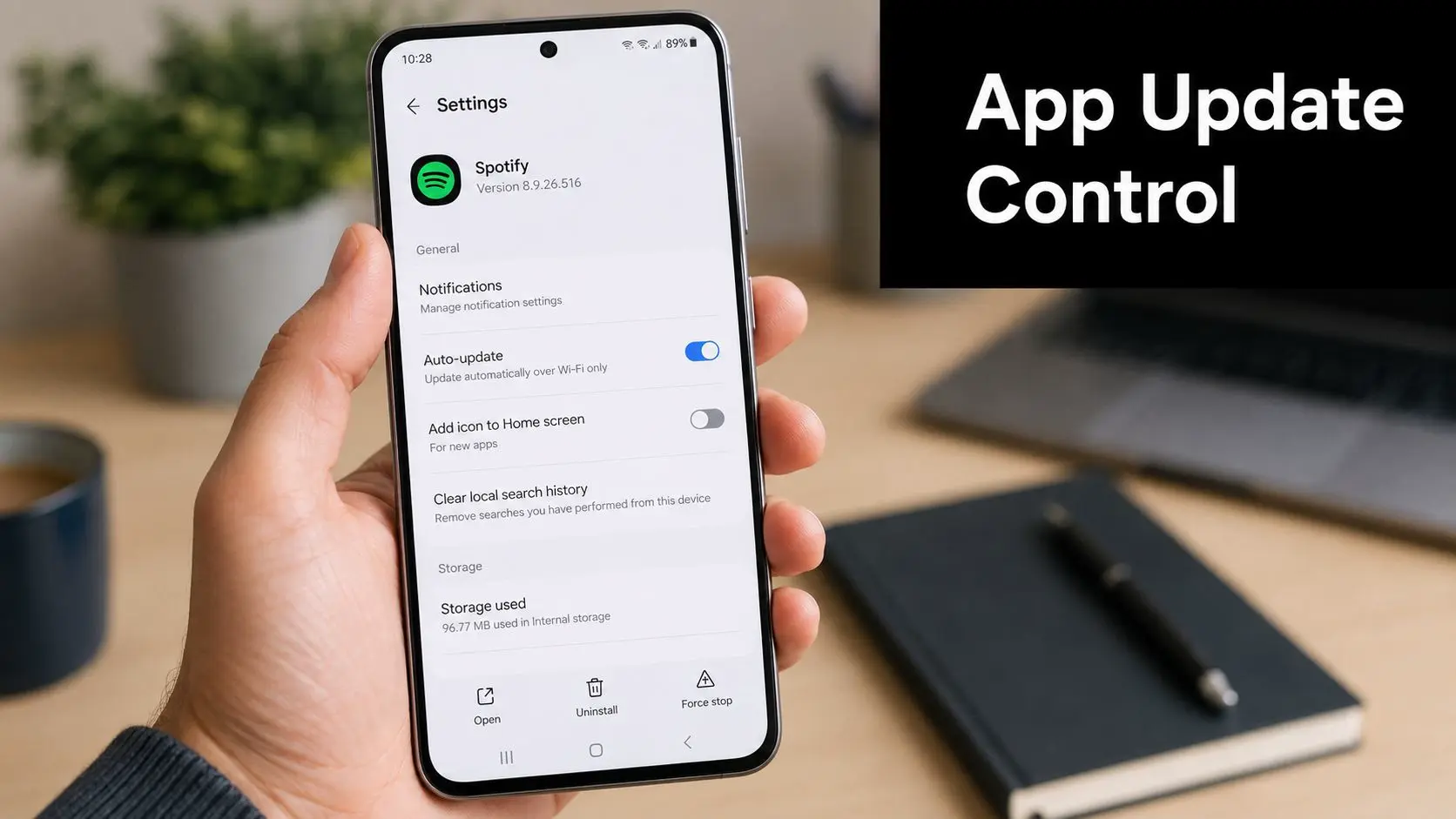
How to turn auto-update on or off for one app
Open Google Play Store, search for the app, and open its listing page. Tap the three-dot menu in the top right, then toggle Enable auto update on or off. That's it. The setting applies only to that app.When per-app control is worth using
- •Critical apps: Keep auto-update on for banking, authentication, password, and work communication apps.
- •Unpredictable apps: Turn it off temporarily for apps with a history of awkward redesigns or broken releases.
- •Review and test devices: If you're checking software behaviour, manual control stops the app changing under you.
- •Low-priority apps: Games and occasional-use utilities can wait if you prefer stability over immediacy.
One stubborn app doesn't mean your whole Play Store setup is wrong. Sometimes the cleanest fix is just to handle that app separately.
If you're trying to make apps update automatically on Android without handing over total control, this is the setting that makes the system feel sane.
Troubleshooting Common Auto-Update Failures
The most frustrating scenario is when you've enabled auto-update correctly and nothing happens. In practice, that usually comes down to timing, network restrictions, storage pressure, or cached Play Store glitches. In the UK, 72% of Android users report that at least one critical app update failed to auto-install within 48 hours, often because of restrictive network preferences or low disk space, and devices need at least 500MB free according to Google Play Help guidance cited for UK users. So if your apps don't update immediately, that doesn't automatically mean the feature is broken.
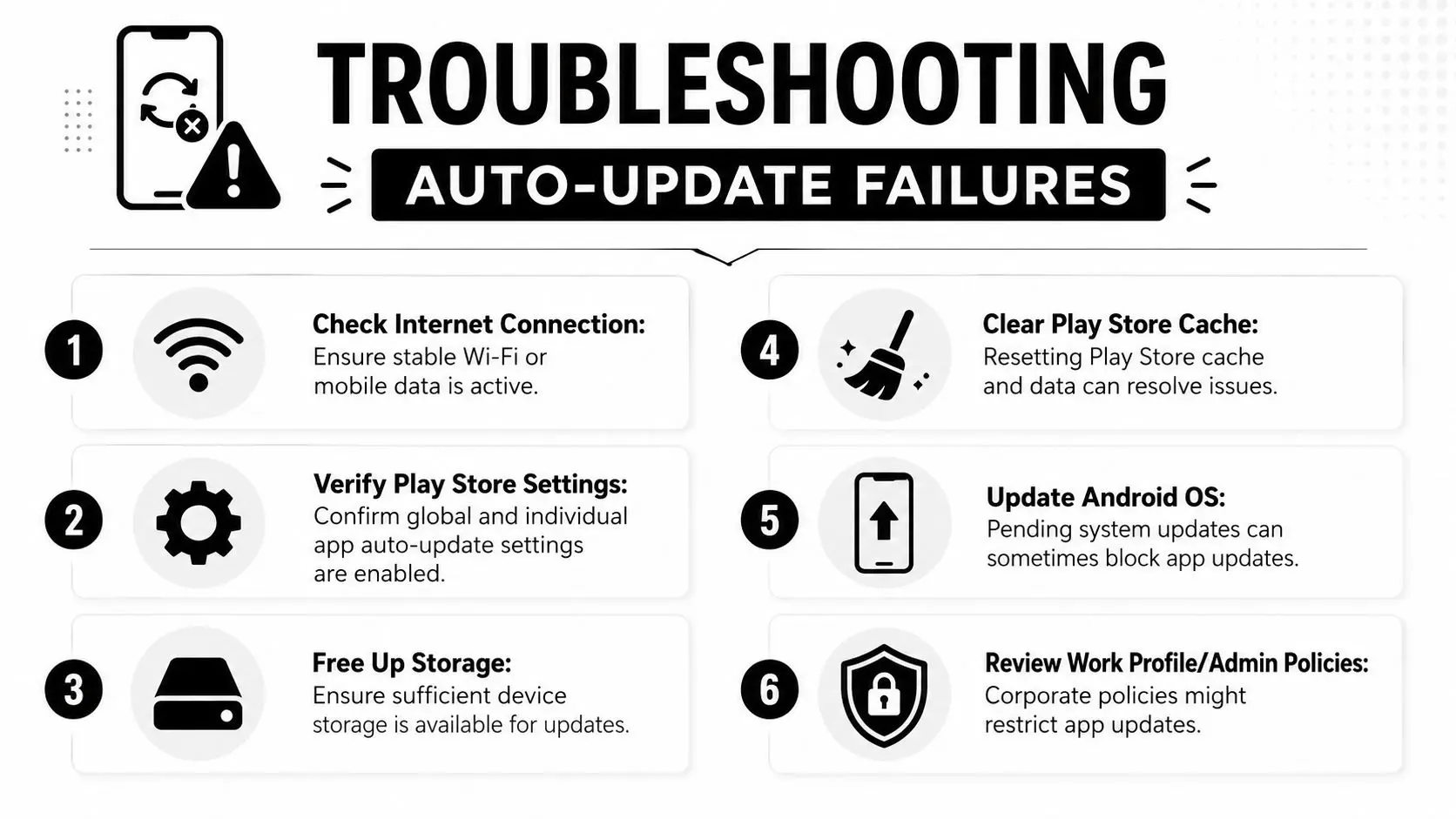
Start with the boring checks
These solve more failures than people expect:
- •Check connection: If you chose Wi-Fi only, confirm the phone is on a stable Wi-Fi network.
- •Check free space: If storage is tight, Android and Play may delay or skip installs.
- •Check battery modes: Battery Saver and aggressive background restrictions can slow down background activity.
- •Check pending system updates: A phone waiting on an Android update can behave oddly with app installs.
A lot of confusion comes from the update cycle itself. Android checks regularly, but “automatic” doesn't mean “the second a developer hits publish”. There can be a delay before Play decides conditions are right.
Clear the Play Store when it gets stuck
If one or more updates sit in limbo, clear the app cache for:
- •Google Play Store
- •Google Play Services
- •Download Manager if your device exposes it
Then reopen Play Store and let it refresh. This often clears stale state without touching your installed apps.
Don't jump straight to factory resets. Cache issues and storage pressure are far more common than deep system corruption.
Watch for network preference conflicts
Many auto-update problems often go unnoticed in specific device settings. A phone set to Wi-Fi only behaves exactly as configured, but users often forget they selected that option months ago. Then they spend days on mobile data and assume auto-update has failed. If you want a broader primer on how update delivery works beyond the app store layer, AppLighter on over the air updates is a useful reference. It helps separate app-level updating from wider device update behaviour, which is where people often mix up terms. When auto-update keeps failing, think in this order: network, storage, cache, system restrictions. That sequence usually gets you to the answer fastest.
Fixing Updates Blocked by Work Profiles or Security Policies
This is the part most guides barely mention. You can have the right Play Store settings, enough storage, solid Wi-Fi, and still watch auto-updates fail because another layer is in charge. Many users fail to realise that auto-updates can be disabled without notification by conflicting device management profiles, particularly on enterprise or Samsung devices with Work Profiles, which require cache clearing and sometimes profile removal to resolve, based on user troubleshooting collected in this Reddit discussion about Play Store auto-update failures.
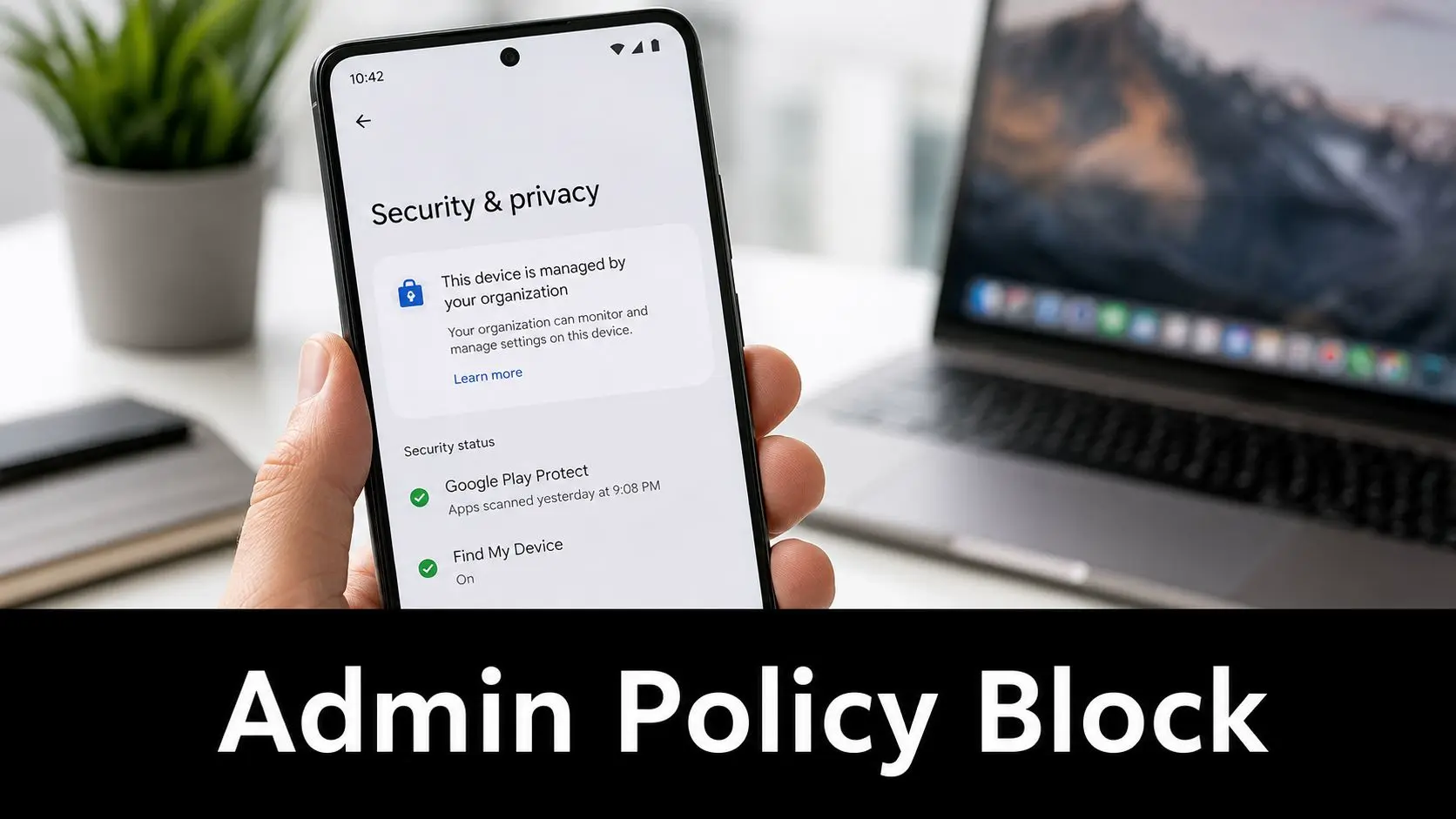
Signs your phone is managed
Look for clues such as:
- •A Work Profile tab in the app drawer
- •A briefcase icon on apps
- •A message saying the device is managed by your organisation
- •Separate Play Store behaviour between personal and work apps
If you're on Samsung, this can be especially confusing because Samsung account features, secure folders, and work controls can overlap in ways that don't make the source of the restriction obvious.
What usually works
Try the simplest fixes first:
- Open Settings and check whether a Work Profile is active.
- Clear cache for Google Play Store.
- Restart the phone.
- Test whether the issue affects only work apps or all apps.
- If the profile is old or partially removed, ask your IT team whether a stale policy is still attached.
If your phone belongs to your employer, don't remove management profiles casually. You can break access to work mail, apps, or secure sign-in.On a personal device that once carried work apps, removing an obsolete Work Profile can restore normal Play Store behaviour. On a company-issued phone, the right fix is usually policy review by IT, not repeated tapping inside Play Store.